
TABLE OF CONTENTS
- What are orders?
- How do you create an order as an admin?
- How do you create an order with sign up form?
- How do you create an order as a key-contact?
- How do you confirm or deny an order/orders as an admin?
- More information
What are orders?
The Orders tab in the global navigation is the central hub for managing sales and enrollments in Eduframe. Every order is linked to one or more enrollments and is specifically connected to a single course or program edition. You can place orders for individual participants, on behalf of an organization for multiple participants and via a key-contact.
Each order record connects the participant's enrollment data with the corresponding invoices, which you can assign to different accounts if necessary.
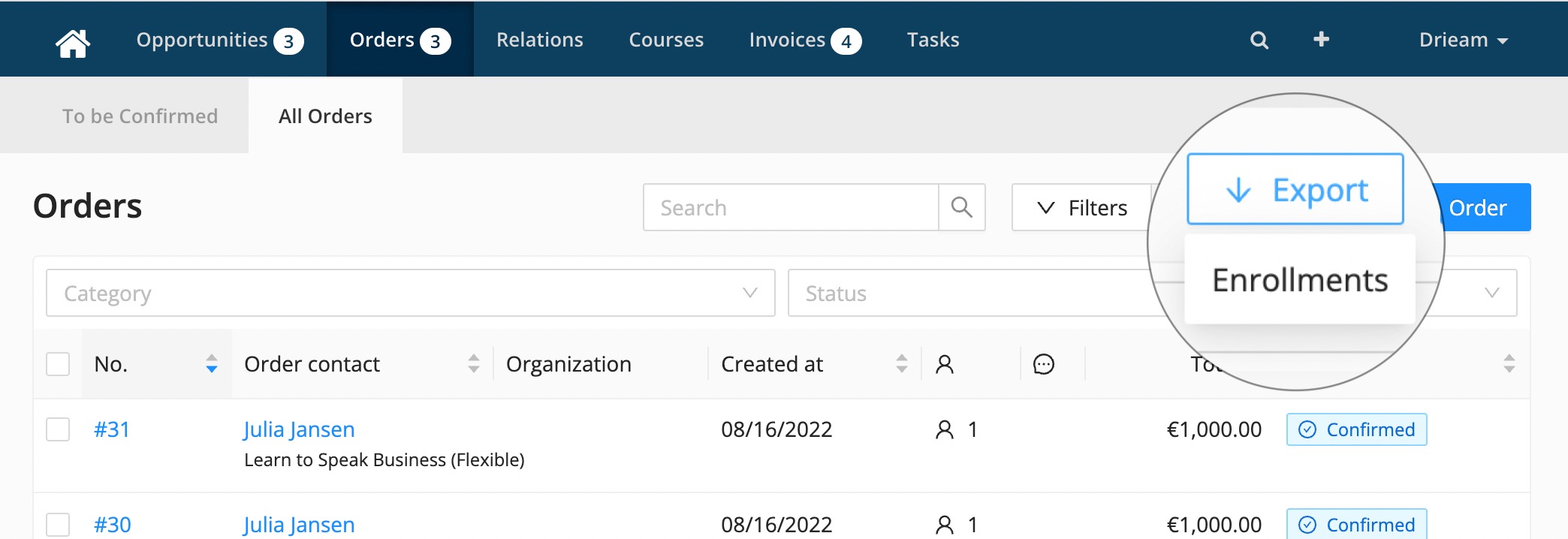
In the submenu within Orders there are two tabs. In the To be confirmed tab, all existing orders that are requested will be displayed. The number shown in the menu indicates how many orders still need to be confirmed. All orders tab shows a table with all orders. Here you can export all the data to an Excel file that will consist of all data concerning enrollments and orders.
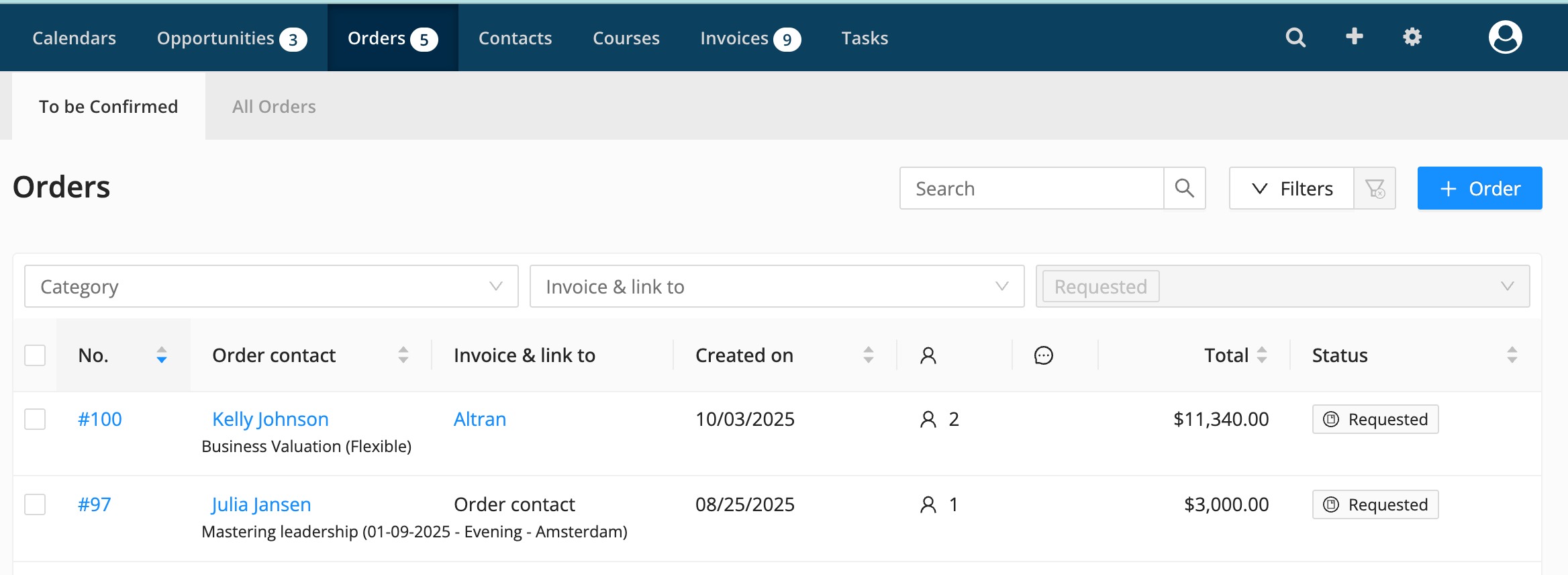
To manage large volumes of orders, the orders overview includes several tools to refine your view:
Filtering: You can filter the order list based on specific criteria, such as order status, date ranges, or specific courses. This allows you to quickly isolate the information you need.
Custom Exports: Beyond viewing data in the dashboard, you can export your filtered or full list to a CSV file. This generates a detailed report containing all relevant enrollment and order data, perfect for further analysis or integration with your accounting software.
*Only an option in the All orders tab
Search: The built-in search bar allows you to locate specific records quickly. You can search for orders using the participant's name, order number, or template name. To ensure speed and accuracy, the search function activates automatically after you type at least three characters.
Eduframe distinguishes between two types of orders to accommodate different workflows:
Personal Orders: These are placed by individual participants who are responsible for their own registration and payment.
Business Orders: These are placed on behalf of an organization. This type allows for bulk enrollments where the organization acts as the primary billing contact.
How do you create an order as an admin?
Admins can manually enroll multiple students in courses and programs directly from the backend. This process involves selecting the right order type, adding participants, and managing the order's lifecycle through statuses.
Understanding Order Statuses
Each order follows a specific lifecycle indicated by its status:
- Requested: The order is a draft. Enrollments are not yet active or official.
- Confirmed: The order is finalized, and participants are officially enrolled in the course or program.
- Cancelled: A previously confirmed order has been revoked, removing the active enrollments.
- Denied: A requested order was rejected and never became an active enrollment.
How to Create a New Order
To start, click the + Order button and follow these steps:
- Choose Order Type
Personal Order: The billing address and financial record are linked directly to the individual being enrolled.
Organizational Order: The order is linked to a company or organization rather than an individual. - Select the Product and Edition
Choose the desired Course Template or Program Template, then select the specific Edition.
Tip: To enroll students in past events, enable the Show completed courses switch. - Add Participants
There are four ways to add students to an order- Individual Selection: Use the Enroll contacts field to select or search for existing participants.
- Advanced Search: Click the Search icon to filter contacts by specific labels or select multiple people at once.
- Bulk Import: Click Add contacts in bulk to paste a list of email addresses (separated by enters, spaces, commas, or semicolons).
Note: This only works for existing Eduframe contacts. - Create New Contact: Use the Add contact button to register a new person in the system and add them to the order immediately.
- Save and Finalize
Decide how you want to process the registration:
Save: Creates a draft with a Requested status. No official enrollment is created yet.
Save and Confirm: Finalizes the order and immediately enrolls the participant(s) in the course or program.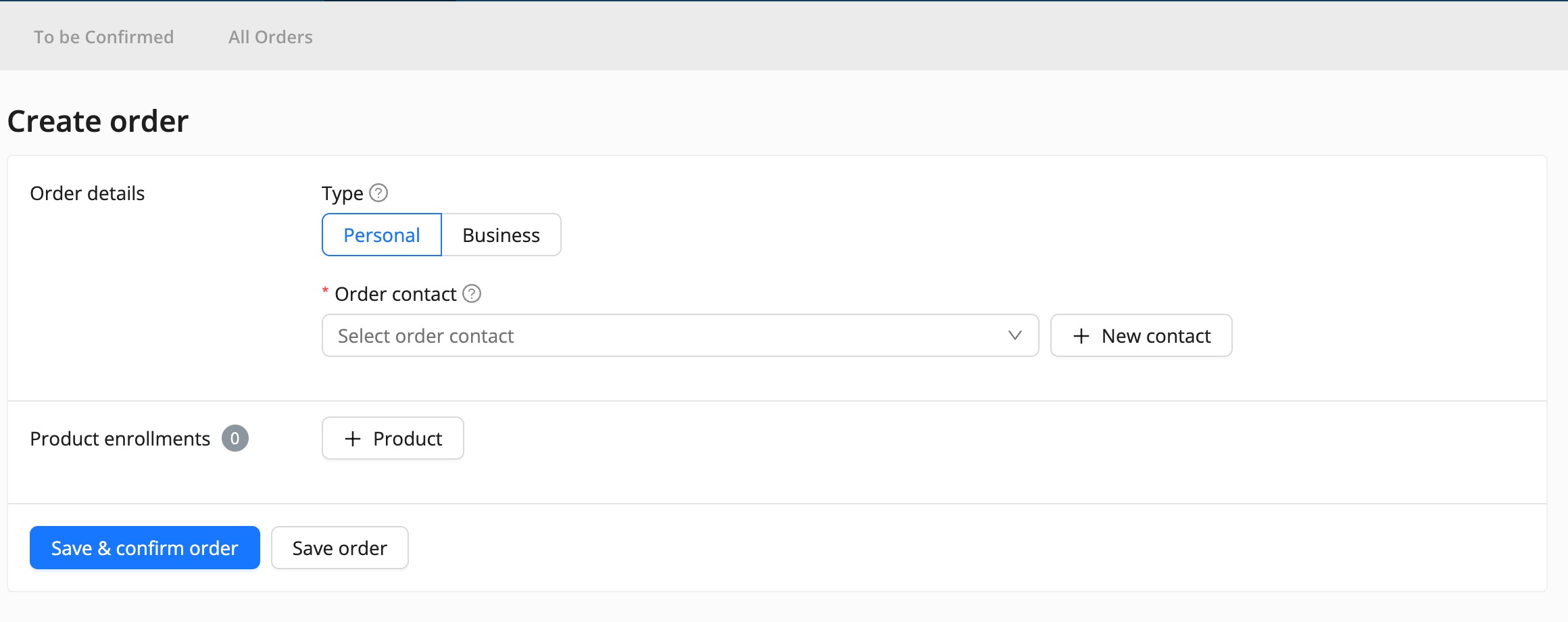
Note:
Invoices are only generated for orders with a price. If a course is free or the price is set to "to be determined," no draft invoice will be created upon confirmation.
How do you create an order with sign up form?
How Signup Forms Work
Eduframe allows you to automate the enrollment process by connecting your website directly to our signup forms. This eliminates the need for manual data entry and provides a seamless experience for your participants.
When a participant (with or without an existing account) completes a signup form on your website:
Order Creation: An order is automatically generated in the Eduframe backend.
Default Status: By default, these orders are set to Requested. An admin must manually review and confirm them to finalize the enrollment.
Automated Confirmation: You can bypass manual approval by navigating to Settings > Payment options and enabling "Automatically confirm enrollments after (partial) payment." Once enabled, any order with a (partial) payment is confirmed automatically.
Generating Signup Form Links
You can create signup links for entire templates or specific editions.
- Links for Course or Program Templates
Use this method if you want students to choose from available editions themselves:- Navigate to Courses > Templates and select the desired template.
- Copy the URL from your browser (e.g.,
https://xxx.eduframe.nl/admin/courses/xxx). - Manually edit the URL: Remove
/adminand add/signupto the end.
Example:https://yourdomain.eduframe.nl/courses/google-analytics/signup
- Links for Specific Editions
Use this method to link directly to a specific date and location:- Navigate to Courses (for course editions) or Program Editions.
- Select the specific edition you wish to share.
- Scroll down to the "Show course on signup" field.
- Click the Copy button next to the URL to get your direct signup link.
Important Configuration notes:
- Visibility: Ensure the product is set to "Visible" and that the setting "Show active courses on website" is enabled in your Account settings.
- Testing: To view the signup form as a participant would, always open the link in an incognito/private browser window or a browser where you are not logged in as an admin or teacher.
How do you create an order as a key-contact?
Key Contacts can manage their organization's training needs directly through the Eduframe portal. This allows them to enroll multiple employees/participants and manage billing details independently.
Navigating the Customer Portal
Once logged into the portal, Key Contacts have access to a dedicated dashboard to manage their organization's education:
Orders Tab: Displays an overview of "Private products" specifically available for the organization, as well as public offerings.
Product Selection: Key Contacts can toggle between Courses and Programs to find the right training for their team.
Dynamic Pricing: The list displays the total price per product or indicates if the price is "To be determined"
To enroll employees as a Key Contact in a private product, follow these steps:
Browse Products: Locate the desired course or program within the Orders tab of the portal.
Initiate Enrollment: Click the + Order button next to the specific product edition you wish to purchase.
Select Participants:
Choose existing employees already linked to your organization.
Add new participants by entering their details if they are not yet in the system.
Confirm Details: Review the number of enrollments and the total price before submitting.
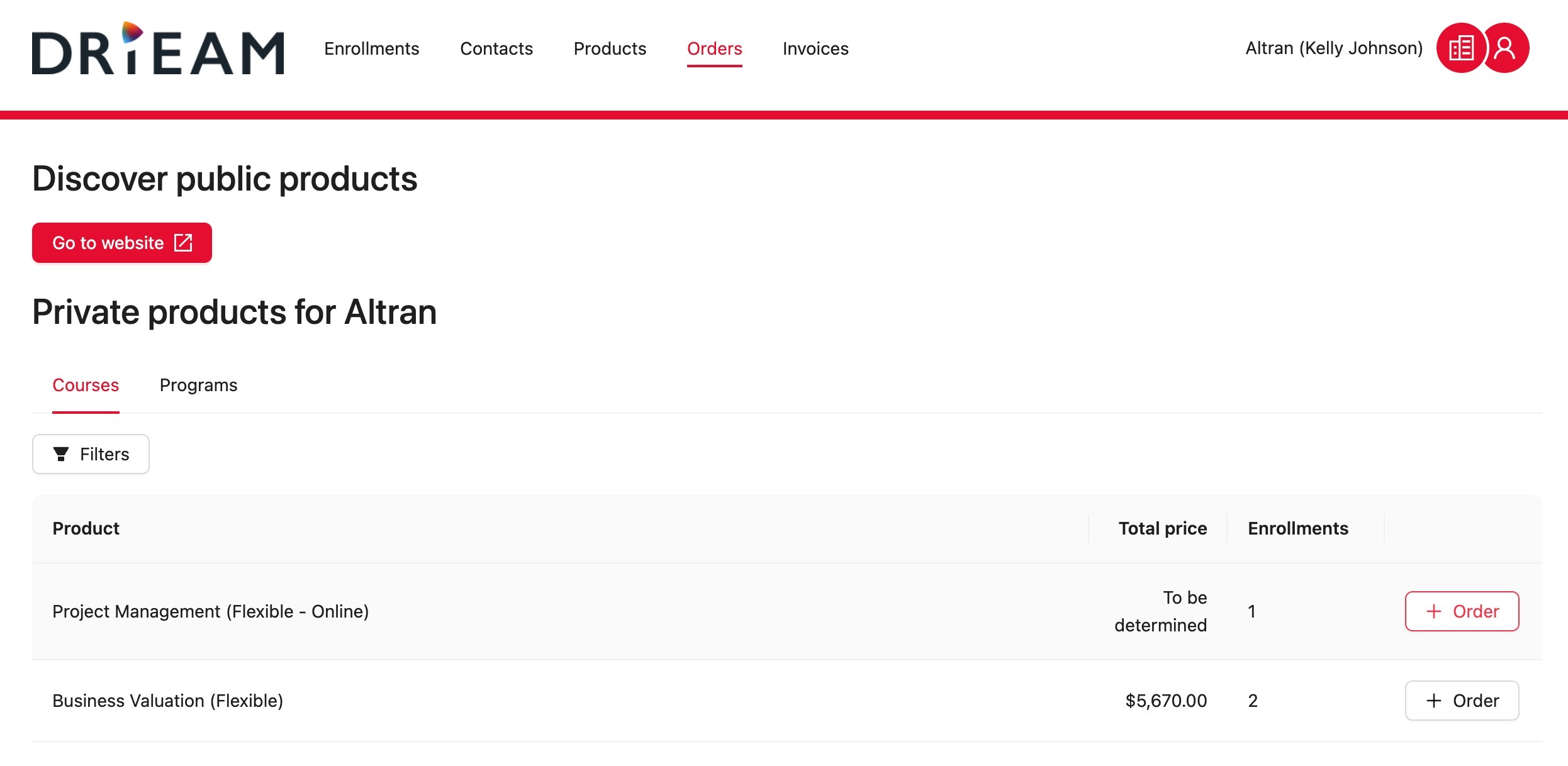 Image: Order tab within Business portal
Benefits of Key Contact Orders
Centralized Billing: All invoices are automatically assigned to the organization's account rather than individual participants.
Administrative Efficiency: Reduces the workload for Eduframe admins by empowering clients to manage their own staff registrations
How do you confirm or deny an order/orders as an admin?
In the To be Confirmed tab, you can efficiently process individual or multiple order requests. This allows you to maintain control over who enters your courses before invoices are finalized.
To save time, you can select multiple orders by clicking the checkboxes on the left. Once selected, use the Confirm or Cancel/Deny buttons at the top of the list to process them all at once.
Confirming Orders: When you confirm an order, the system officially registers the enrollment and prepares the necessary financial records.
Canceling or Denying: If a request is incorrect or cannot be fulfilled, use the Cancel/Deny option to remove it from the pending list.
Note:
Both actions (confirm and cancel/deny) can have impact on sending e-mails. Read more about this here.
More information

Click here for other Articles around the Settings page in Eduframe

Click here if you have any questions for support.
Was this article helpful?
That’s Great!
Thank you for your feedback
Sorry! We couldn't be helpful
Thank you for your feedback
Feedback sent
We appreciate your effort and will try to fix the article