
TABLE OF CONTENTS
Introduction
Prior to the release of this change, the UI of Qualtrics LTI allowed you to add a survey on the Institute, Department, and Personal surveys levels using a survey type (”Standard Canvas assignment”, “In-class survey (QR code)”, “Bulk Canvas assignment”. You would then configure the survey.
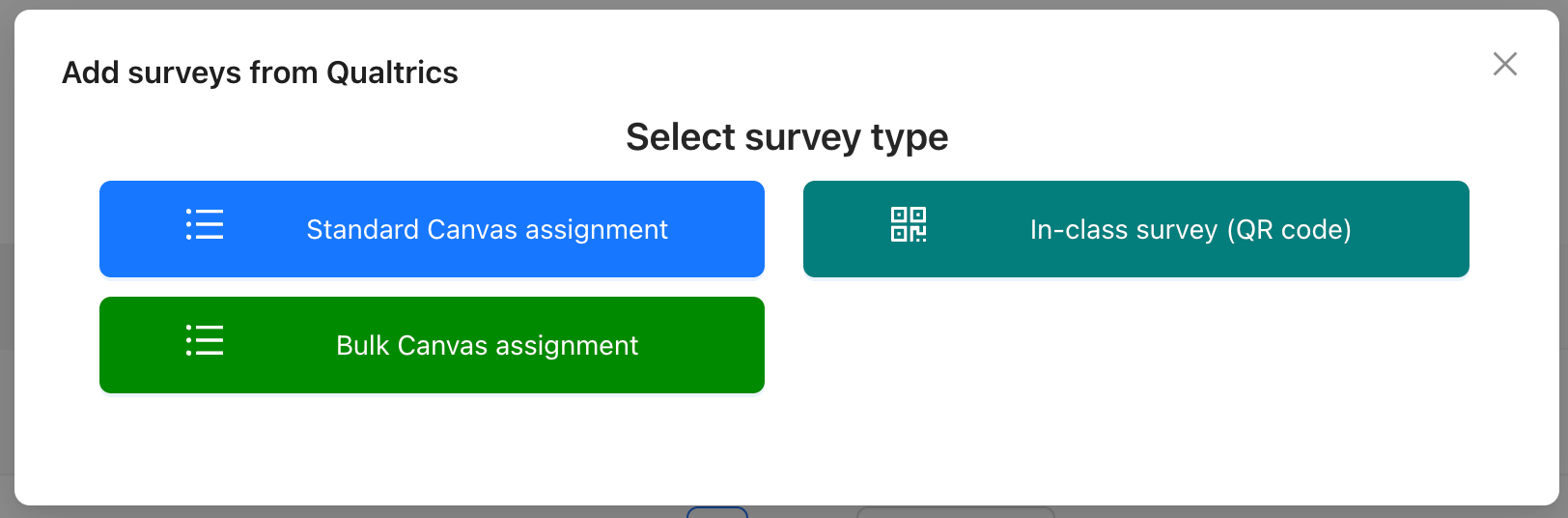 Fig 1. A screenshot of Qualtrics LTI's Add survey modal. Shown are the four survey types: Standard Canvas assignment, In-class survey (QR code), Bulk Canvas assignment.
While this system works just fine, there are some issues that we wanted to address:
- The Surveys list can grow quite large.
- The Surveys list repeats the same Qualtrics survey if you’ve added it for multiple survey types, which can get confusing quickly.
- You cannot create in-class surveys in bulk.
- You can only create 1 “configuration” (bundle of settings) for each survey type per Qualtrics survey.
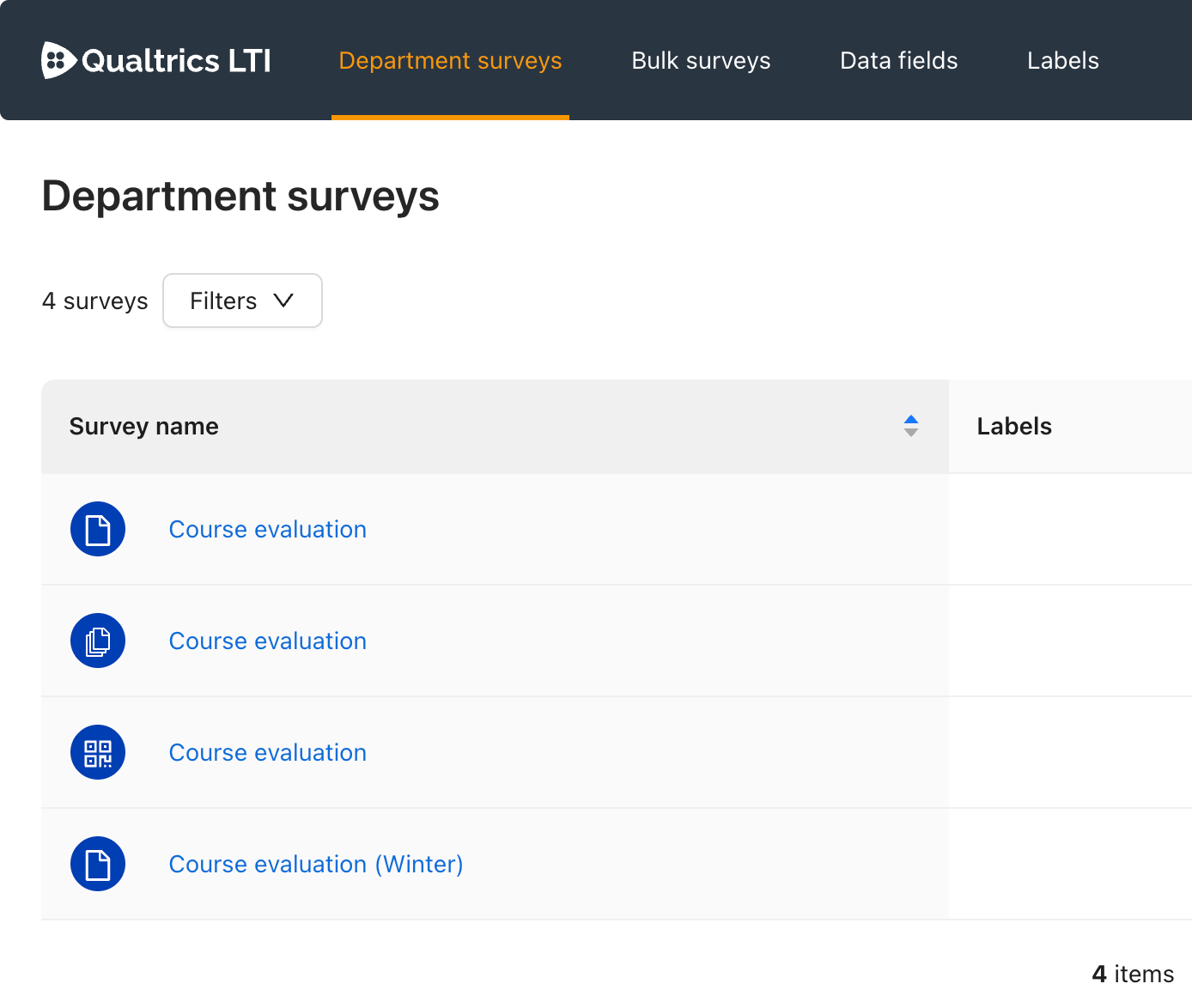 Fig 2. A screenshot of Qualtrics LTI, showing a list of Surveys. The same Qualtrics survey, ‘Course evaluation’, appears multiple times with for three survey types: Standard, Bulk, and In-class. A second Qualtrics survey, ‘Course evaluation (Winter)’, appears with the Standard survey type.
These problems arise due to the concept of a ‘Qualtrics survey’ and a ‘configuration for distributing the survey’ being mixed together; each of the above records could be thought of as a ‘survey configuration’ rather than just a ‘survey’. Therefore, we have updated Qualtrics LTI to work a little differently by separating these concepts.
To address these issues, we have separated the concept of a “Qualtrics survey in Qualtrics LTI” (a Survey) and the bundle of settings and embedded data fields that you attached to it (a Configuration).
✏️ Want to skip the details and see a quick run-down of how this works? Check out the § Walkthrough section of this article.New Workflow
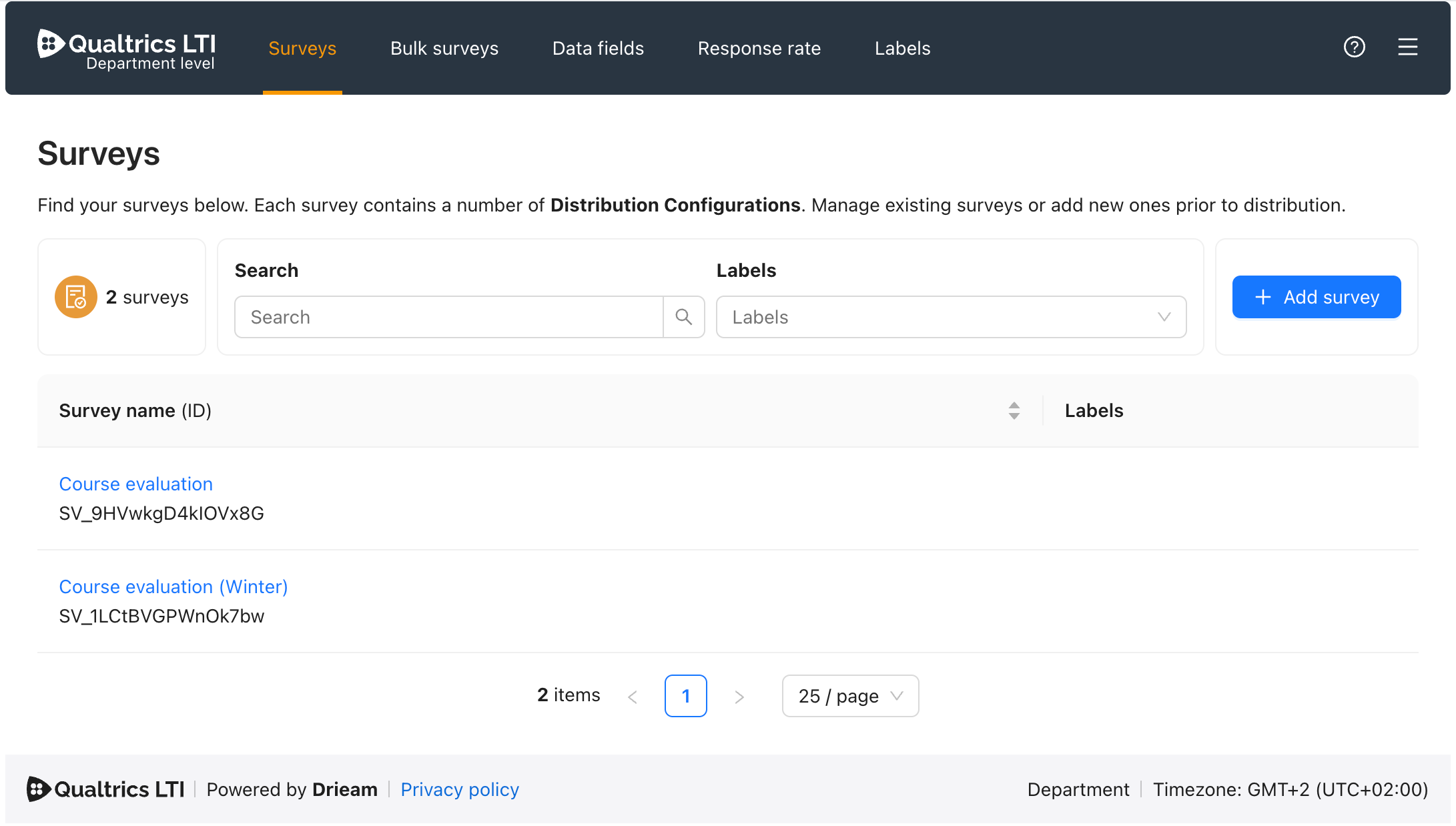
Fig 3. A screenshot of Qualtrics LTI, showing the new Surveys list in the user interface. Shown are two Qualtrics surveys that have been added to Qualtrics LTI: ‘Course evaluation’ and ‘Course evaluation (Winter)’. Beneath both names are the corresponding Qualtrics survey IDs.
Surveys
A Survey works very similarly to how surveys work previously. However, they are much ‘thinner’: you can add Labels to a survey and add Configurations to a survey.
Previously, all of the distribution settings were coupled to the survey itself, including but not limited to Canvas SpeedGrader settings, grade passback settings, and embedded data fields.
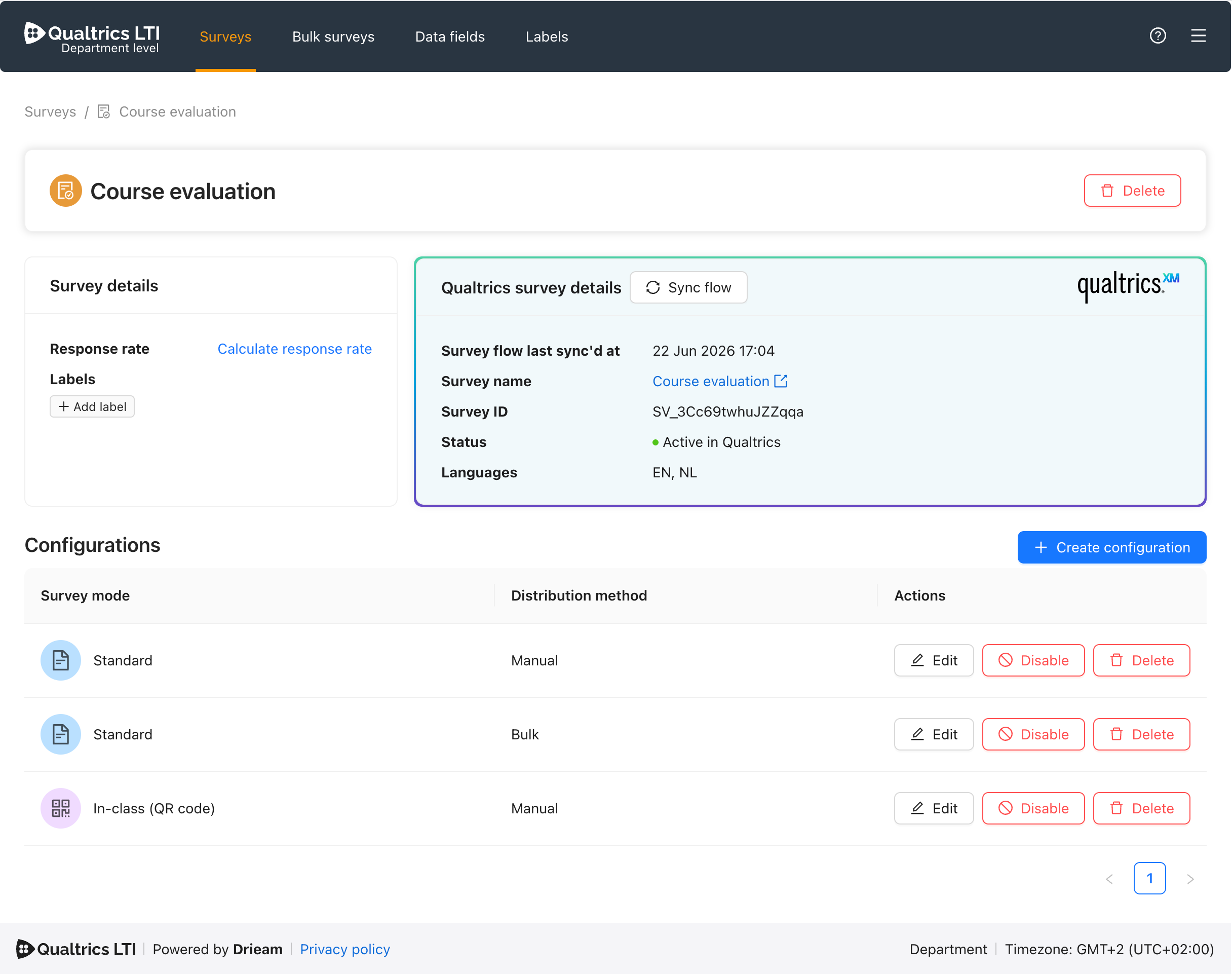
Fig 4. A screenshot of Qualtrics LTI, showing the new Survey user interface. Shown are the Labels of the survey. Shown also are details for the Qualtrics survey itself: the name, ID, status, languages, and timestamp for the most recent sync. Shown also are a list of Configurations: Standard manual, Standard bulk, In-class manual.
Configurations
A Configuration represents a configuration of the survey that you will eventually attach to a Canvas assignment — or use in the bulk wizard. This is the new home for all of the settings that previously lived on the Survey itself.
Creating a Configuration is as easy as selecting the Survey mode and Distribution method:
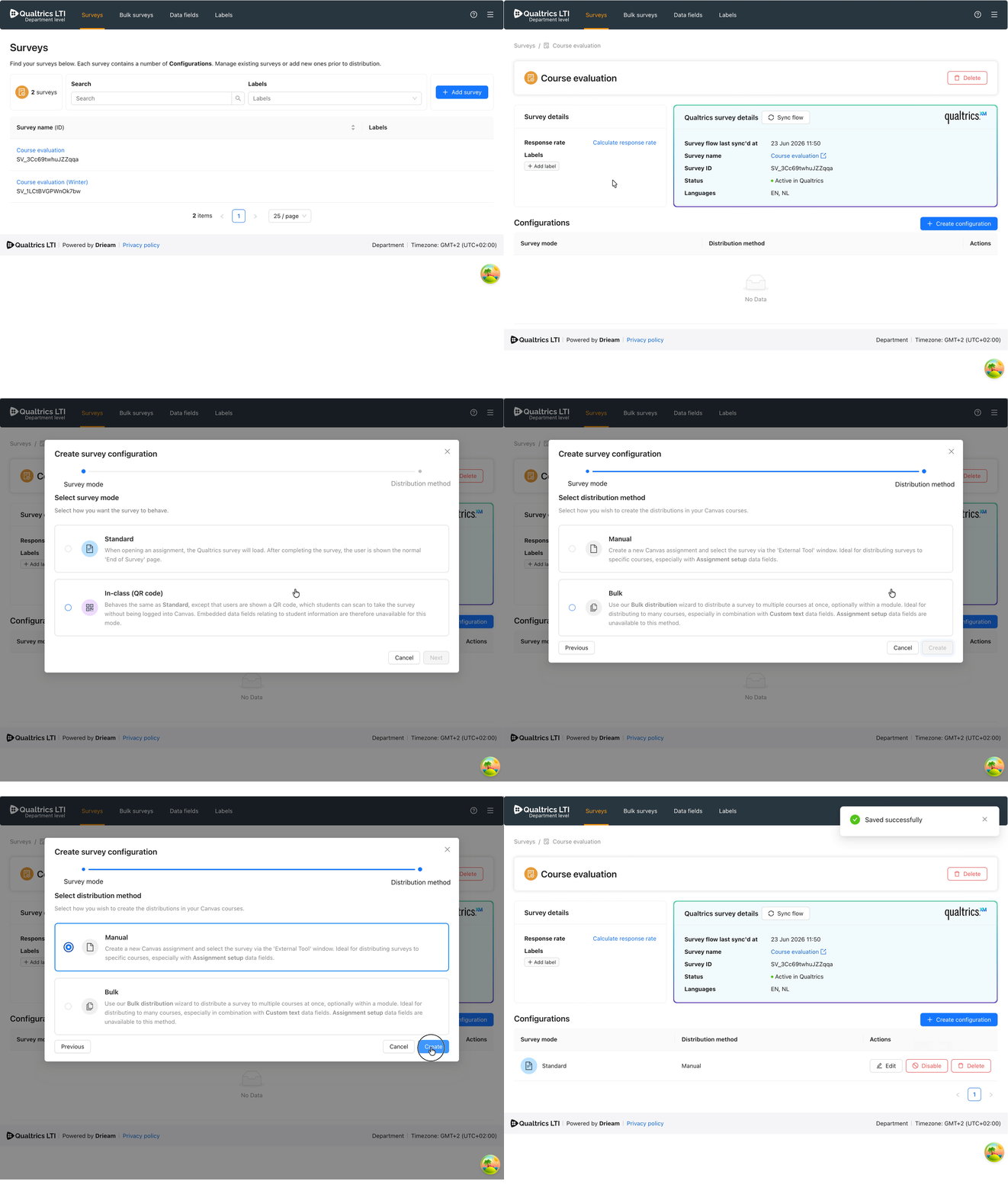
Fig 5. A video showing the Create configuration modal of a Survey in Qualtrics LTI. Shown is a user selecting the Survey mode ‘Standard’, followed by the Distribution method ‘Manual’. After clicking on Create, a new Distribution configuration is created and shown in the list of Configurations for that Survey.
In short: Survey mode determines how the survey will behave, and Distribution method is ‘Manual’ for creating assignments in Canvas yourself, or ‘Bulk’ for when using the bulk wizard to create multiple assignments at once.
✏️ For more information on what each Survey mode and Distribution method does, please consult our Survey Modes / Distribution Methods article. You can then customise each Configuration as you wish:
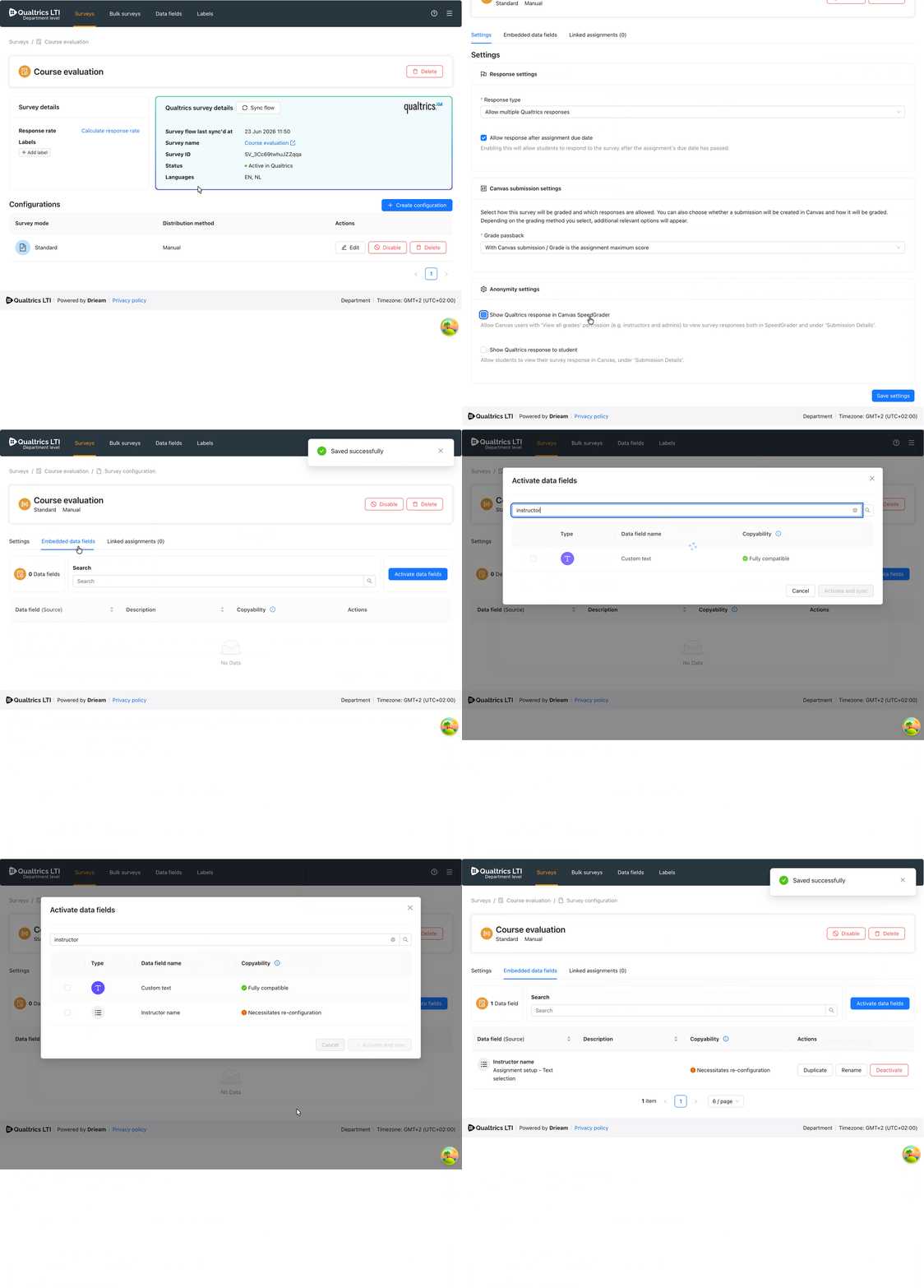
Fig 6. A video showing a Configuration’s edit page in Qualtrics LTI. Shown is a user changing some Canvas SpeedGrader settings and viewing the activated embedded data fields.
The process for distributing a survey is almost identical to the old process except now the different Configurations are more clearly listed:
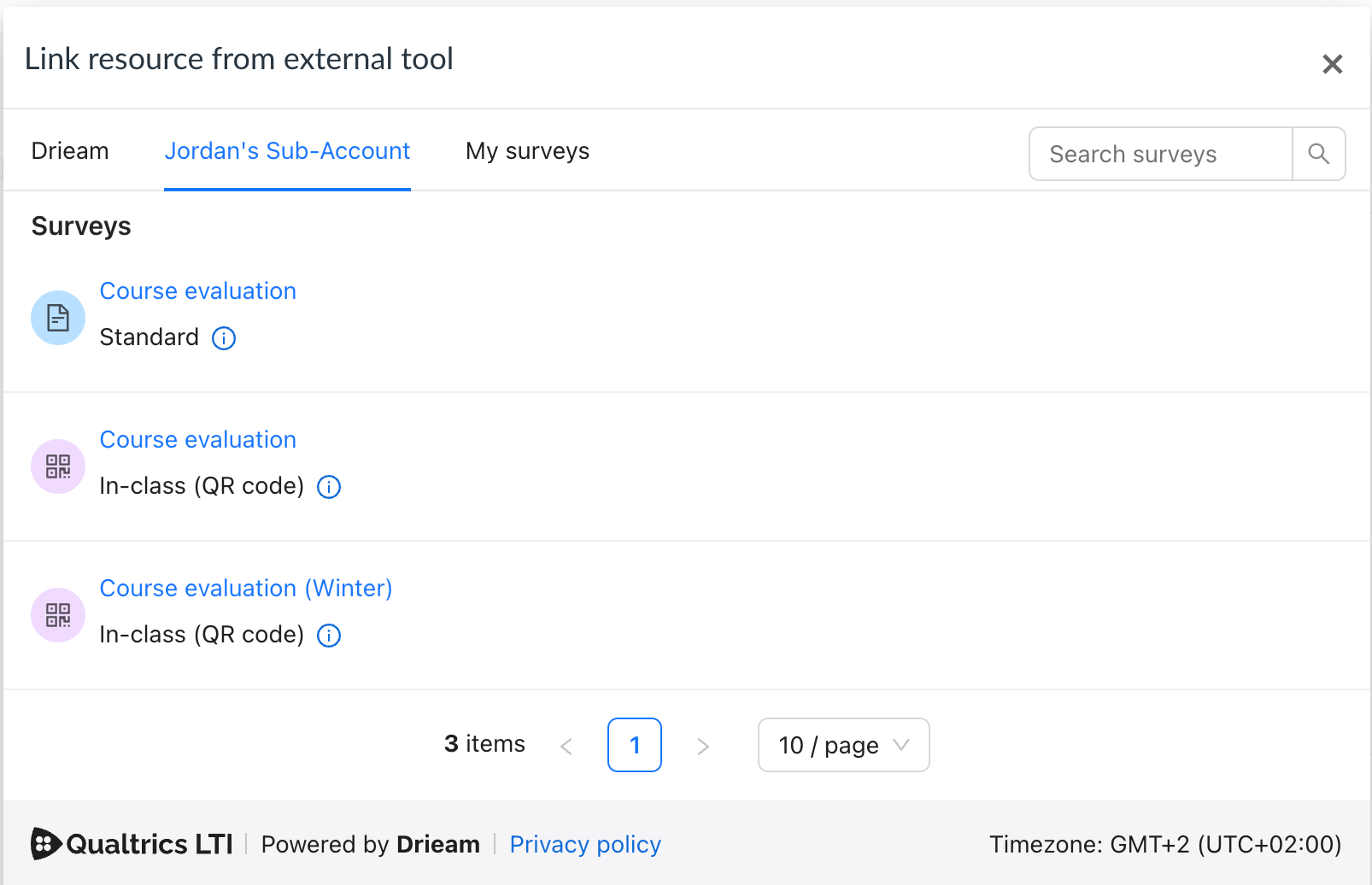
Fig 7. A screenshot showing Qualtrics LTI inside the External Tool Window of Canvas’s ‘Create assignment’ flow. Shown are a list of Surveys by their Configuration: ‘Course evaluation (Standard)’, ‘Course evaluation (In-class)’, ‘Course evaluation (Winter) (In-class)’. The ‘Course evaluation (Bulk)’ configuration is not shown, as that can only be distributed via the bulk wizard.
Migration: The New Mapping
With the release of this feature we will automatically convert legacy surveys into Surveys + Configurations. This means that your UI will be updated to show the new list with the new records, per the conversion.
We use the following mapping:
| Survey type (Legacy) | Survey mode (New) | Distribution method (New) |
|---|---|---|
| Standard | Standard | Manual |
| Bulk | Standard | Bulk |
| In-class | In-class | Manual |
Compare Figs 2, 3, and 4 to see how 4 legacy surveys were converted into 2 Surveys with Configuration(s).
Walkthroughs
Part 1: Adding and configuring a Qualtrics survey
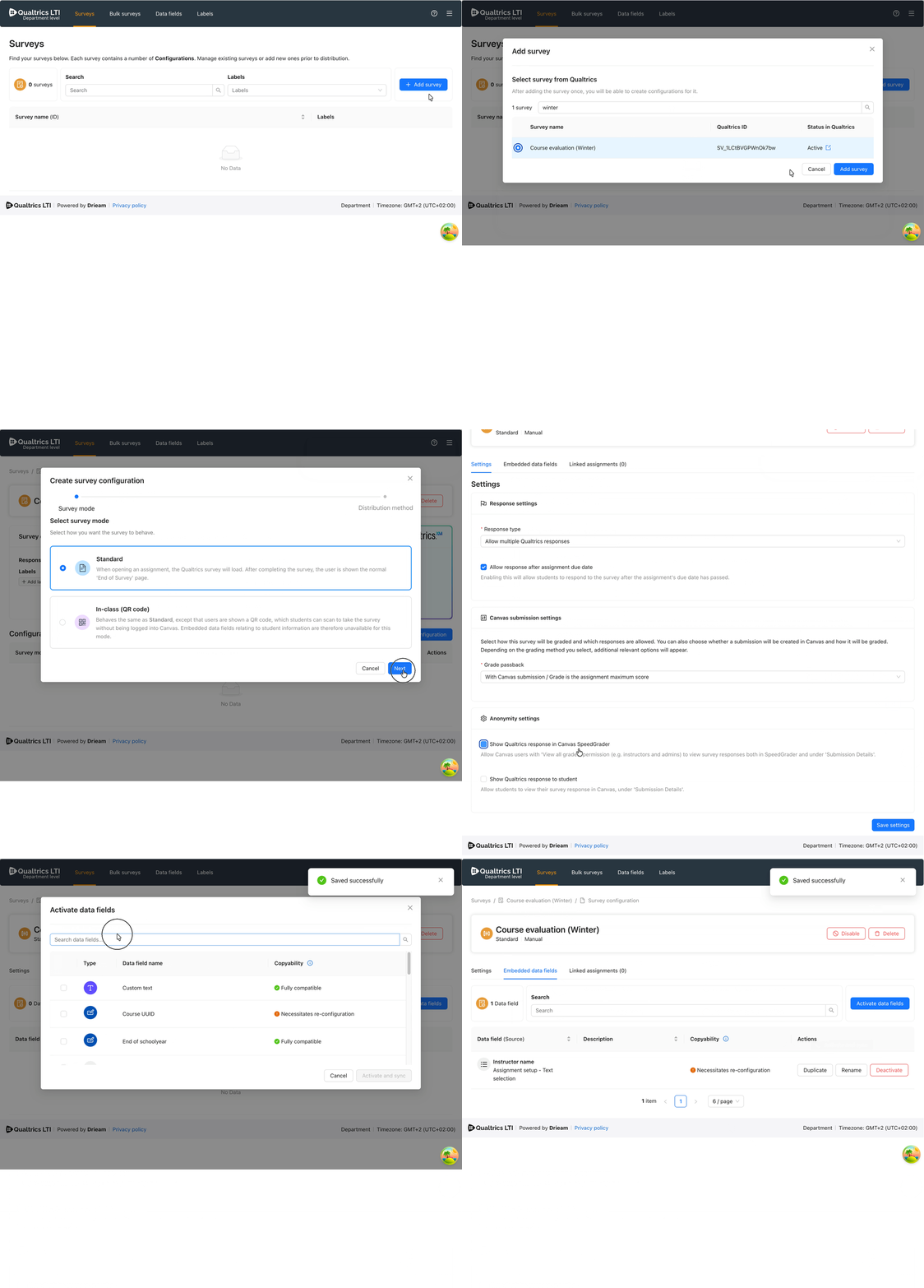
Fig 8. A video showing the new Surveys UI in Qualtrics LTI. Shown is a user clicking the Add survey button and selecting a Qualtrics survey called ‘Course evaluation (Winter)’. The user then opens the survey in Qualtrics LTI and creates a new configuration before editing it and activating an embedded data field on it.
Part 2: Distributing a Qualtrics survey
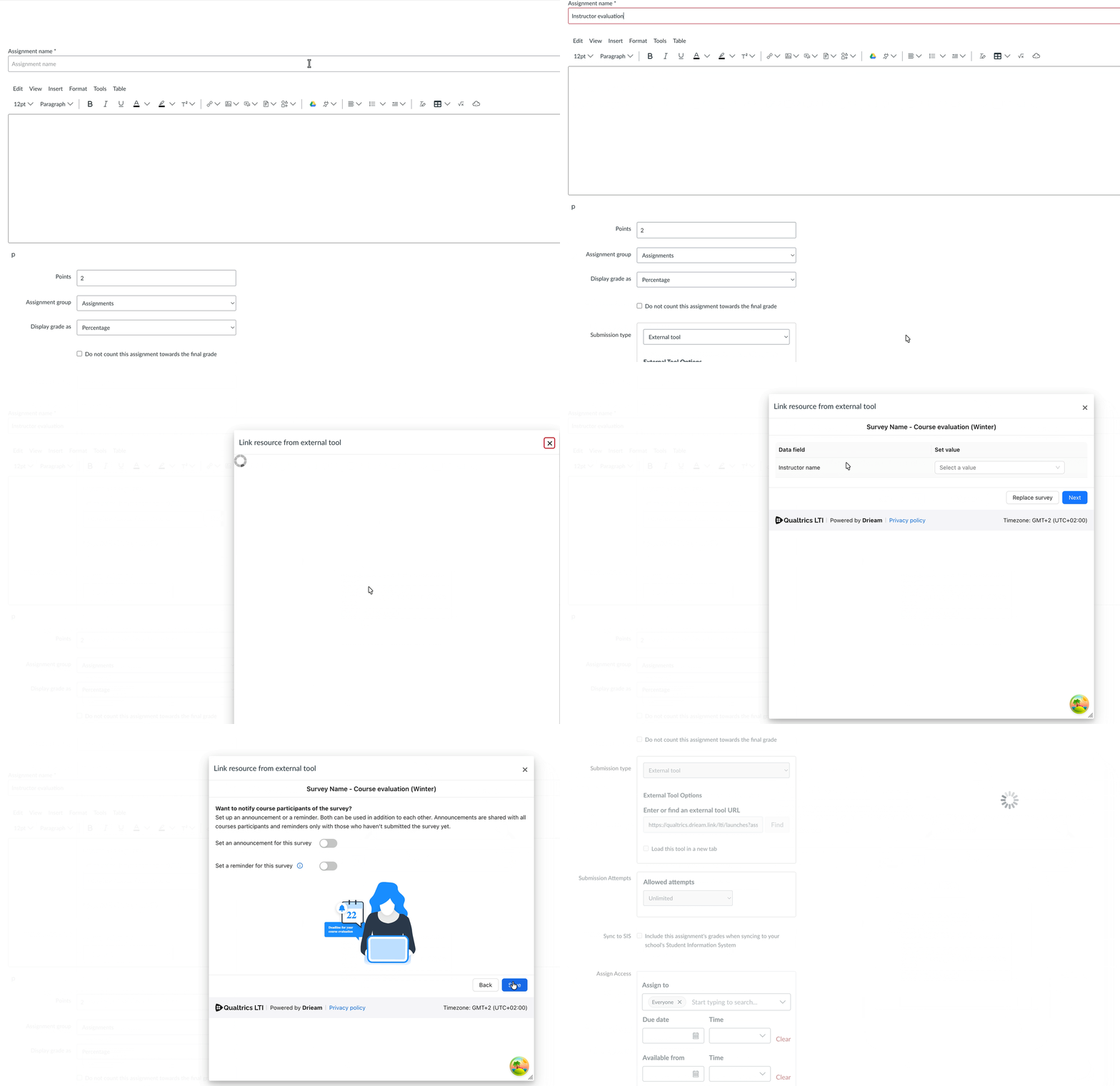
Fig 9. A video showing the ‘New assignment’ view in Canvas. Shown is a user opening the Submission type: ‘External tool’ window, before selecting Qualtrics LTI, selecting the survey added and configured in Fig 8, setting a value for the activated embedded data field, and then saving the assignment.
Future Developments
Thanks to this change, we will be to expand on the concept of configuration. Some things already on our mind:
- Allowing you to make more than 1 configuration per survey mode + distribution method, so that you can create different configurations for your different needs throughout the academic year.
- Allowing you to create in-class surveys in bulk.
✏️ Have some ideas for future developments? Feel free to get in touch at support@drieam.nl!
Was this article helpful?
That’s Great!
Thank you for your feedback
Sorry! We couldn't be helpful
Thank you for your feedback
Feedback sent
We appreciate your effort and will try to fix the article