
TABLE OF CONTENTS
The Academic Transcript provides a unified document that captures a student’s entire academic journey. By consolidating all courses, results, and achievements into a single record. The transcript can be used for admissions, job applications or credit transfers.
Configuration
To set up the Academic Transcript, navigate to Settings > Academic Transcripts.
Flexible HTML Template
The Academic Transcript uses a flexible HTML and Liquid-based template editor allowing you to fully customize the structure and layout to match the institution’s branding and academic standards. You can for example, add logos and styling, reorder sections and show/hide fields.
Preview Mode: You can see a live preview of your transcript on the right side of the editor. Important: Always click Save first to ensure your latest changes are reflected in the preview window.
When creating an academic transcript template you start from zero. Need some guidance? Ask support for a template. Programs and Graduation Date
You can include a list of completed programs (e.g., at the bottom of the transcript).
Graduation date: You can display the graduation date of your program (e.g., the certificate awarded date for US customers). Ensure the graduation date is correctly filled in on the program enrollment for it to appear on the transcript.
Grades and Credits
The template allows you to pull in all relevant enrollment data, including:
Course Titles and Codes.
Final Grades/Results.
Credit metrics (Hours, Units, and CEUs).
Official vs. Unofficial Transcripts
Eduframe distinguishes between official transcripts generated by administrators and unofficial transcripts available to students in the Student Portal.
Admin: Official Transcript
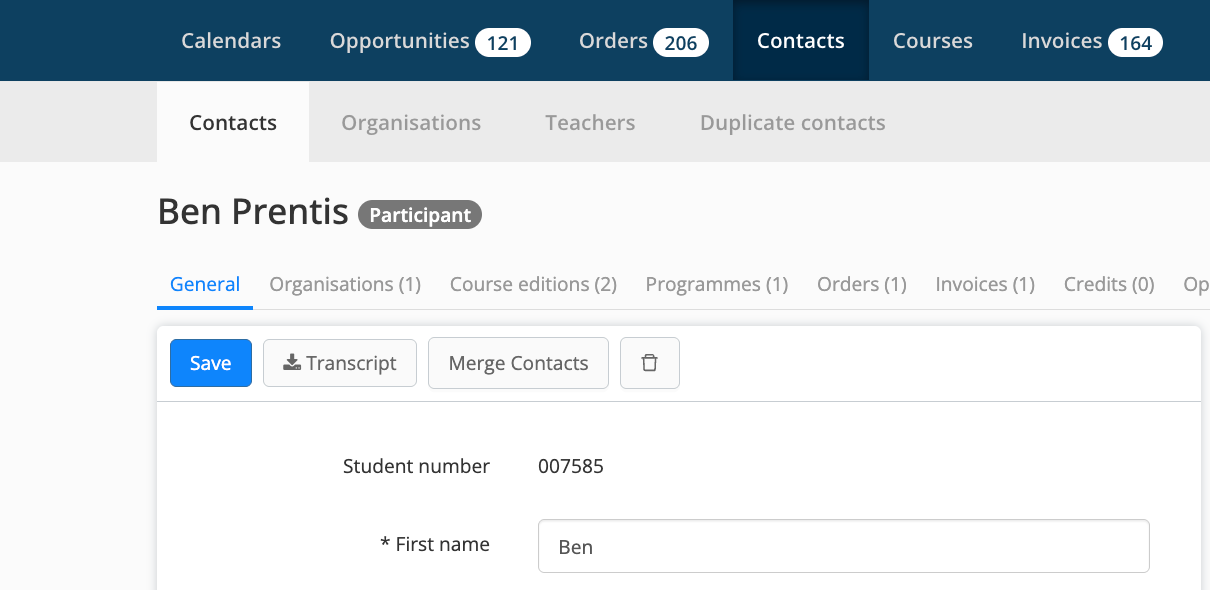
Administrators can download the transcript directly in their admin portal from the Student Profile.
Navigate to the specific student's profile.
Click the Transcript button (located next to the Save button).
This version is typically used as the Official Transcript, which can be signed, sealed for official distribution, or uploaded to external verification services like Parchment.
Student Portal: Unofficial Transcript
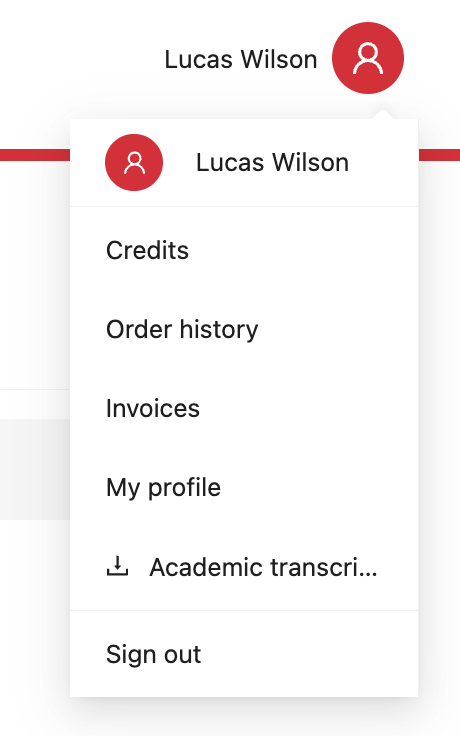
Students can access an unofficial version of their transcript record via the Student Portal to verify their prgress.
Open the profile menu in the top-right corner.
Select Academic Transcript from the dropdown menu.
This version is labeled as an Unofficial Transcript.
Pro-tip: You can use Liquid logic in your HTML template to automatically show or hide specific elements (like an "Unofficial" watermark or a Registrar's signature) depending on whether the document is being downloaded by an Admin or a Student.
More information

Click here for other Articles on Premium features in Eduframe

Click here if you have any questions for support.
Was this article helpful?
That’s Great!
Thank you for your feedback
Sorry! We couldn't be helpful
Thank you for your feedback
Feedback sent
We appreciate your effort and will try to fix the article