
TABLE OF CONTENTS
- Recap: Bulk Survey Distributions
- Introduction
- Assignment creation mode
- Assignment dates mode
- Course type
- Course selection mode
- Number of assignments per course
Recap: Bulk Survey Distributions
With the bulk surveys feature, you are able to distribute a Qualtrics survey into Canvas assignments in bulk across one or more courses.
If you are unfamiliar with bulk distributions, please refer to our Bulk Survey Basics article.
Introduction
As a consequence of the rich bulk distribution features we offer, the Configuration step of the bulk wizard has grown quite large.
This guide offers an explanation of each of the settings in the Configuration step of the bulk wizard.
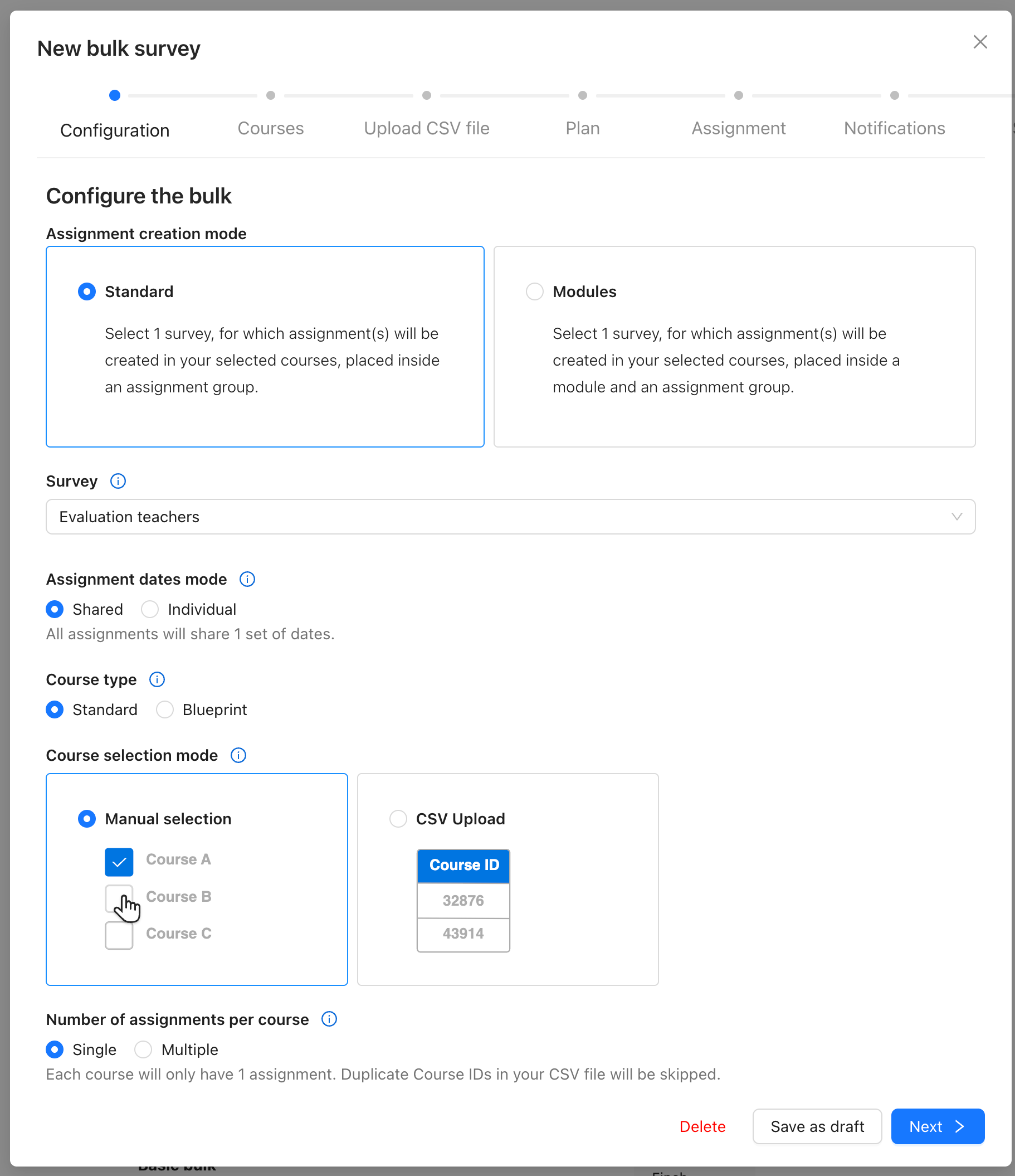
Fig 1. A screenshot of the bulk survey wizard in Qualtrics LTI. Shown is the Configuration step and all of its settings.
Assignment creation mode
Standard
Assignments that are created on your chosen course(s) will be placed within an Assignment Group called ‘Qualtrics Surveys’. If such an Assignment Group has already been created via previous bulk distributions, then we will place the assignments in the same one.
Modules
Assignments that are created on your chosen course(s) will be placed within an Assignment Group called ‘Qualtrics Surveys’. If such an Assignment Group has already been created by us by previous bulk distributions, then we will place the assignments in the same one.
Additionally, a Canvas Module is created in each of your chosen course(s). You may choose the name of this Module. Assignments that are created on your chosen course(s) are then placed into this Module. We will make a new Module for each bulk distribution: if such a Module has already been created via previous distributions, we will not re-use it.
✏️ Note: It is currently not possible to select an existing Module to distribute the assignments into, however we are interested in prioritising such a feature this year.

If you would be interested in this, please reach out to support@drieam.nl!
Assignment dates mode
On the Plan step, you will choose the following set of dates for your assignments:
- Creation date
- Publish date
- Due date
- Available from/until date
Shared
The dates you choose on the Plan step will apply to all created assignments.
If Assignment creation mode: Modules is selected, then the Creation and Publish dates will also apply to the Module.
Individual
Only the Creation date can be chosen in the Plan step. All other dates are provided in the CSV file, such that each assignment is given a different set of dates.
If Assignment creation mode: Modules is selected, then an additional column is provided to choose the Publish date of the Module. You only need to set this once per course (as all assignments of the same course are grouped into the same Module).
For a more in-depth explanation of this use case, please see our Individual assignment dates article.
Course type
This setting simply lets us know which type of course you wish to distribute into, which affects the options shown in the Courses screen and how we validate your CSV file.
Course selection mode
Manual selection
The Courses step will appear, allowing you to manually select the Canvas courses that you wish to distribute surveys into. If your CSV file contains courses that you did not select, we will warn you in advance.
CSV upload
The Courses step will not appear. Instead, your CSV file will be the source of truth for which courses the assignments will be distributed into (either by LMS ID or SIS ID).
Number of assignments per course
This option only affects how we process the CSV file, and thus appears only while the CSV step is active.
Single
Each course will only have 1 assignment. If we find duplicate courses in your CSV file, then an assignment will only be created for the first instance of that course in the CSV file and duplicates will be skipped.
Multiple
Each course may have more than 1 assignment. We will not skip duplicates: every row in your CSV file will result in an assignment in the corresponding course.
Was this article helpful?
That’s Great!
Thank you for your feedback
Sorry! We couldn't be helpful
Thank you for your feedback
Feedback sent
We appreciate your effort and will try to fix the article