
TABLE OF CONTENTS
- Recap: Bulk Survey Distributions
- What’s new?
- How does this work?
- What is this useful for?
- What are the limitations?
- Guide: Configuration step
Recap: Bulk Survey Distributions
With the bulk surveys feature, you are able to distribute a Qualtrics survey into Canvas assignments in bulk across one or more courses.
If you are unfamiliar with bulk distributions, please refer to our Bulk Survey Basics article.
What’s new?
A new setting has appeared on the Configuration step: Assignment creation mode.
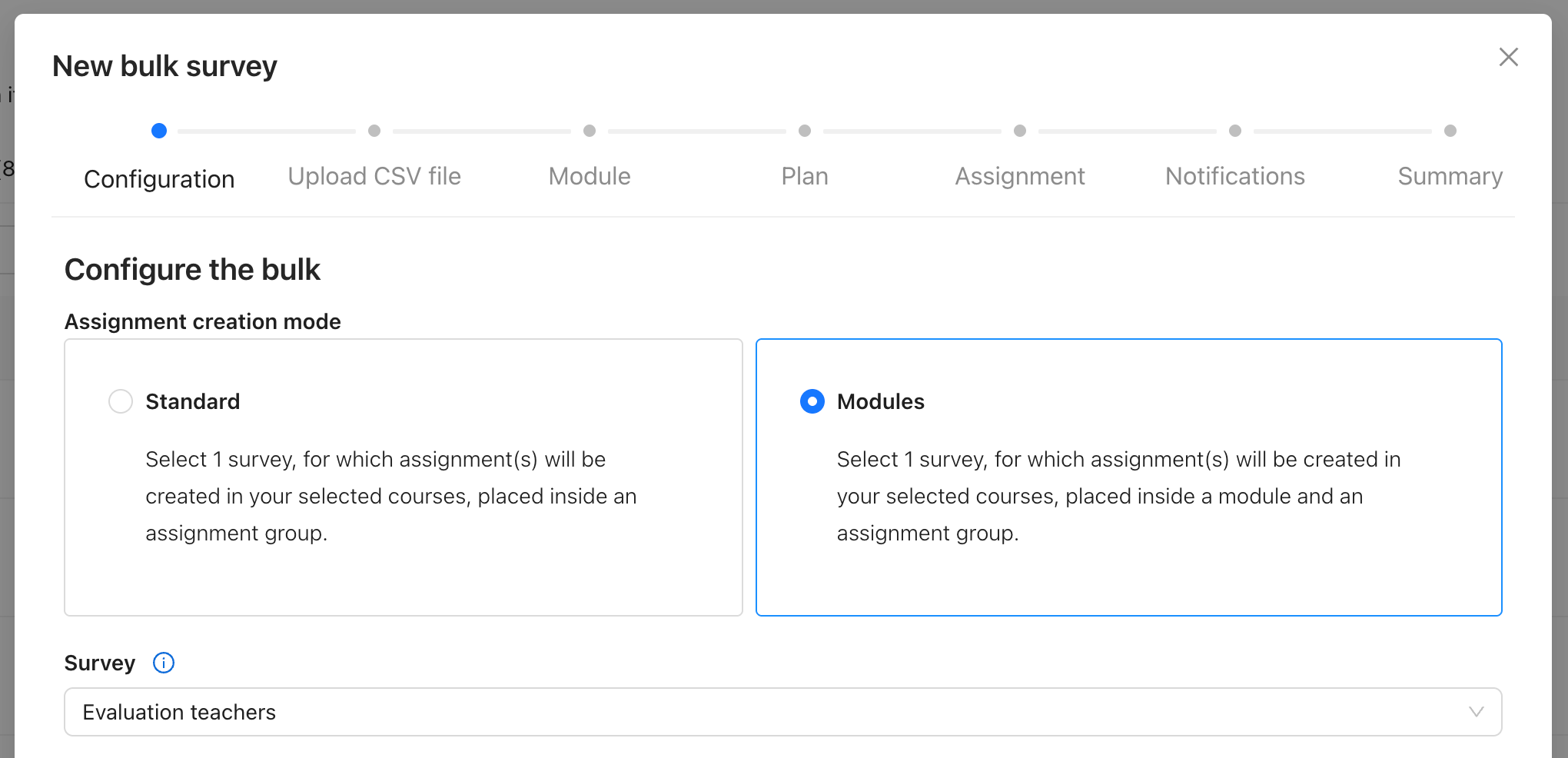
Fig 1. A screenshot of the the bulk wizard in Qualtrics LTI. Shown is the new Assignment creation mode setting with Modules selected.
While Standard allows you to create assignments in bulk as normal, the Modules mode offers an exciting new ability to distribute surveys into Canvas Modules!
How does this work?
When Modules mode is selected, an additional Module step allows you to customise the name of this Module (e.g. ‘Course evaluation surveys’).
When the bulk is generated, for each course that you have selected, we will create a Module in Canvas with your chosen name and place all of the assignments within that Module.
What is this useful for?
If your institution uses Modules heavily — or even hides the ‘Assignments’ section of a course from students entirely — then this feature allows you to use the bulk wizard to distribute assignments without needing to manually move them into a Module.
Canvas Modules themselves have many features, including requiring students to take each assignment in a sequential order. Check out the Instructure docs for more information: What are Modules?
What are the limitations?
This is the first iteration of this feature, and as such there are currently some limitations which we would like to develop solutions for in the near future:
- You cannot select an existing Module.
- You cannot choose the position of the Module we create in the list.
- You can still reposition the Module in Canvas yourself.
- You cannot customise the settings of the Module (e.g. ‘Requires sequential progress’).
- You can still customise the settings of the Module yourself.
✏️ Note: If any of these are of particular importance to you, please don’t hesitate to get in touch with support@drieam.nl and let us know!
Guide: Configuration step
As we expand the bulk distribution feature more and more, the configuration step has really started to grow. In terms of providing you with myriad options for distributing your surveys, this is fantastic! However, we acknowledge the need for clarity on what each setting does.
In order to address this, we have written an article that explains each setting, which we recommend checking out Bulk Survey Wizard: Configuration.
Was this article helpful?
That’s Great!
Thank you for your feedback
Sorry! We couldn't be helpful
Thank you for your feedback
Feedback sent
We appreciate your effort and will try to fix the article