TABLE OF CONTENTS
To ensure the highest level of security for your Canvas environment, we strongly recommend enabling Multi-Factor Authentication (MFA). This recommendation aligns with official advice from Instructure following recent security incidents. MFA adds a vital layer of protection by requiring a second form of verification from an authenticator app before granting access.
Configuration choices for administrators
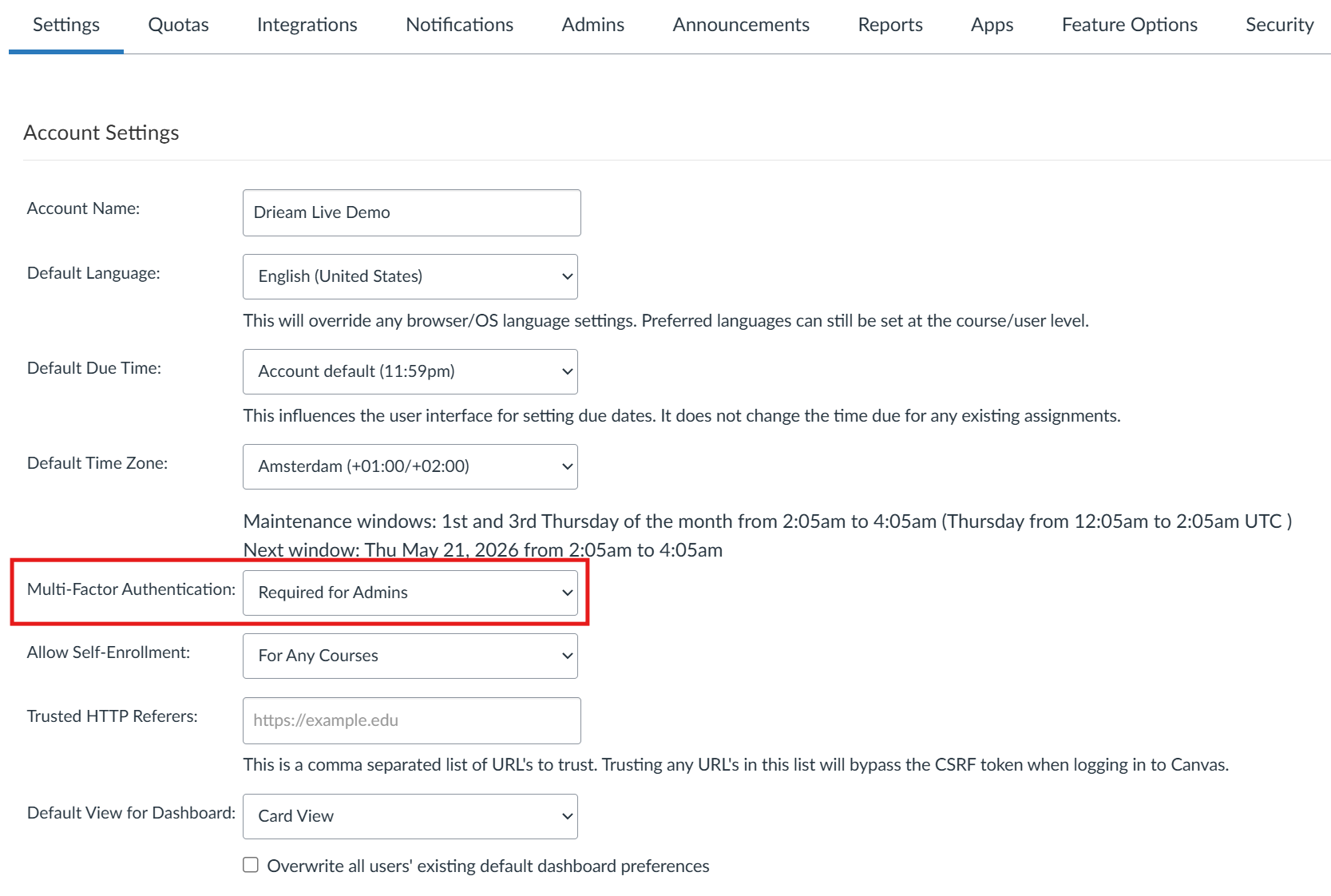
MFA settings are available in Settings on Root-account level. When implementing MFA for Canvas authentication, your organization can choose from three enforcement levels:
Enforced for admins only: (Recommended) Only users with administrative privileges are required to use MFA.
Enforced for all users: Every user (students, teachers, and admins) who uses Canvas authentication must set up MFA to log in.
Optional for all users: Users can choose whether they want to enable MFA in their own profile settings.
Drieam's recommendation: We strongly advise enforcing MFA for all administrator accounts. If your organization has other staff or users who rely on Canvas authentication (rather than an external SSO), we recommend considering broader enforcement to safeguard institutional data.
Impact on other login providers
Please note that when MFA is "Enforced", Canvas will, by default, also require MFA for users logging in via other providers (such as Microsoft Entra ID, Google, or other SSO providers). If you already have MFA configured at the provider level, you may want to disable the Canvas-level MFA for those specific providers to avoid a "double MFA" experience.
How to adjust this in the UI:
Log in as an Admin and go to Admin > Authentication.
Click on the Settings of the specific authentication provider (e.g., SAML or OpenID).
Look for the option "MFA Enrollment" (or similar terminology depending on the provider type).
Change this setting to "None" or "Optional" if you wish to bypass the Canvas MFA requirement for that specific login method.
Activation process
The activation of MFA in your Canvas environment is handled by our support team. To start the implementation, please send a formal request to: support@drieam.nl
Please specify your preferred enforcement level (Admins only, Enforced for all, or Optional) in your request.
Impact on end users
Once MFA is enabled, users will utilize a TOTP-based authenticator app (such as Google Authenticator, Microsoft Authenticator, or Authy) for access.
Setup and daily Use
Initial enrollment: Upon their first login after activation, users will be prompted to scan a QR code with their authenticator app.
Authentication: After entering their password, users must enter the 6-digit code generated by the app.
Backup codes: Users will be provided with recovery codes during setup. It is critical that users save these in a secure location to prevent lockouts if they lose access to their mobile device.
Trust device: Users can opt to "trust" their browser for a certain period, reducing the frequency of MFA prompts on recognized devices.
Was this article helpful?
That’s Great!
Thank you for your feedback
Sorry! We couldn't be helpful
Thank you for your feedback
Feedback sent
We appreciate your effort and will try to fix the article