TABLE OF CONTENTS
- Contacts
- Where can I find all contacts?
- How can I create a new contact?
- How can I delete a contact?
- Export contacts
- How to filter in contacts
- Related articles
- More information
Contacts
A Contact in Eduframe is a user.
Where can I find all contacts?
Underneath Contacts in the global navigation of Eduframe, you will find four tabs: Contacts, Organizations, Teachers and Duplicate Users.

How can I create a new contact?
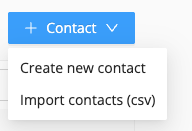
There are two ways to create a new contact:
1. You can a contact from scratch
2. You can import a csv of contacts
More about creating contacts, click here.
How can I delete a contact?
You can delete an contact in Eduframe:
Navigate to Contacts in the global navigation
Click on the contact.
Click on the Trash icon (next to save).
Contacts can only be deleted when there are no sent invoices linked to this contact.
There will be a pop up that explains what happens when you delete a contact:
(pending)
Click Delete. (or Cancel)
Export contacts
In Eduframe, exporting contact data is a standard administrative task used for marketing, external reporting, or synchronizing with a CRM. There are two primary ways to handle this: a General Export (of all people) or a Filtered Export (based on specific criteria).
Navigate to Contacts in the global navigation
If you want you can filter on labels or enrollments/orders (this filter will apply to the export)
Click on the Export button
You will download a .xlsl export with all contacts with the following information:
First Name
Last Name
Contact labels
Mailadress
Created on
*Student number
*Newsletter
Address
Custom fields for contacts
How to filter in contacts
In contacts there are multiple ways to filter in contacts.
- Labels: If you created labels connected to contacts, you can filter on these in the contact page.
You can find more information on labels here. - Enrolments/orders: You can also filter on contact if they have enrolments and/or orders.
- Search: You can search for specific contacts by typing part of their names (first and last name), or by typing the answer of a custom field on the Contact page.
Related articles
More information

Click here for all Eduframe articles.

Click here if you have any questions for support.
Was this article helpful?
That’s Great!
Thank you for your feedback
Sorry! We couldn't be helpful
Thank you for your feedback
Feedback sent
We appreciate your effort and will try to fix the article