This document will walk you through setting up your Canvas Data 2 API key that can then be used by us at Drieam inside StudyCoach to drastically improve the performance of our data syncs.
Find Institution
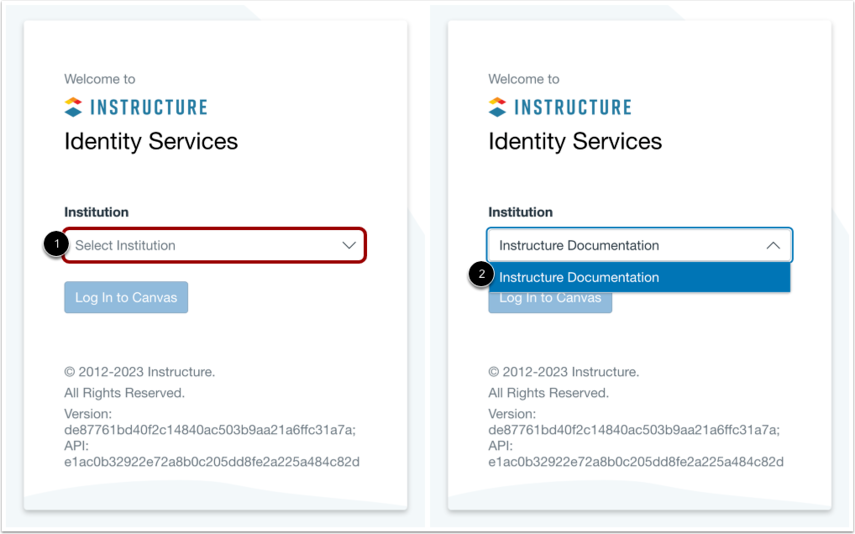
In your web browser, visit identity.instructure.com. In the Institution drop-down menu, search for your institution by entering its name [1]. Once it appears, click your institution's name [2].
Note: If your institution does not appear in the search list try to fill in the full name of your Canvas instance(e.g: schoolname.instructure.com). This will most probably show you “Identity services has not verified this canvas domain”, this is okay and you can continue on this. If that still doesn’t work please contact your Customer Success Manager for Canvas at Instructure.
Log into Identity Services
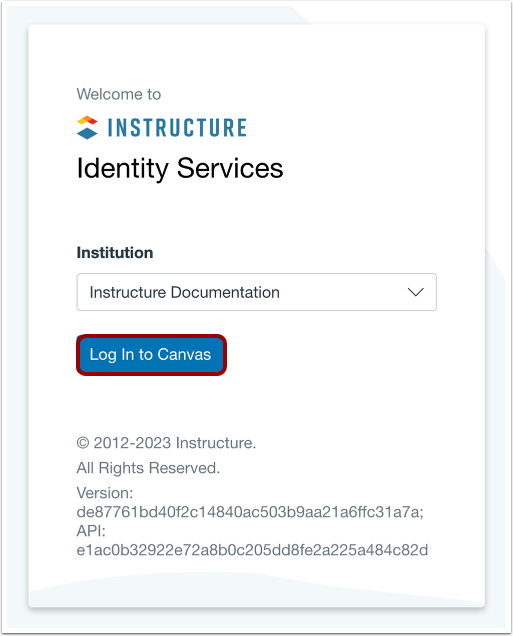
Click the Log In to Canvas button.
Authorize Access
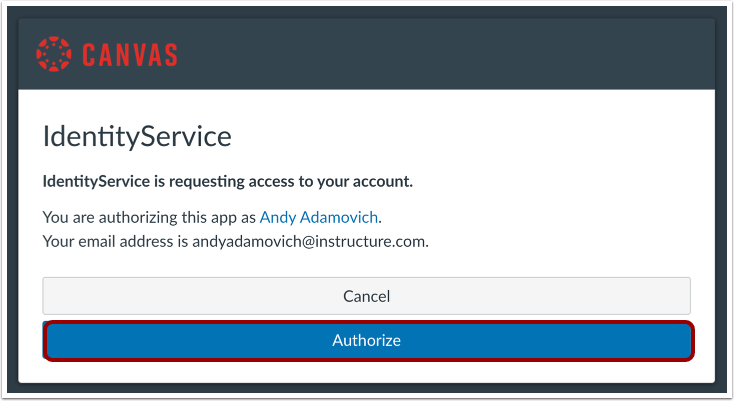
To authorize Identity Service to access your account, click the Authorize button.
Add New Key
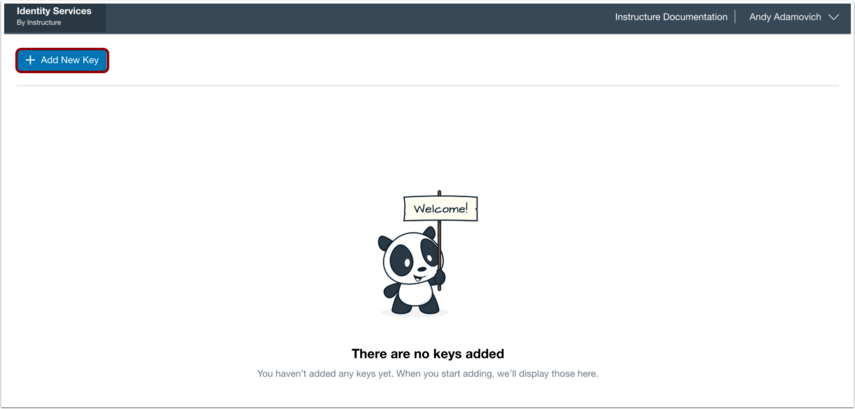
To add a new key, click the Add New Key button.
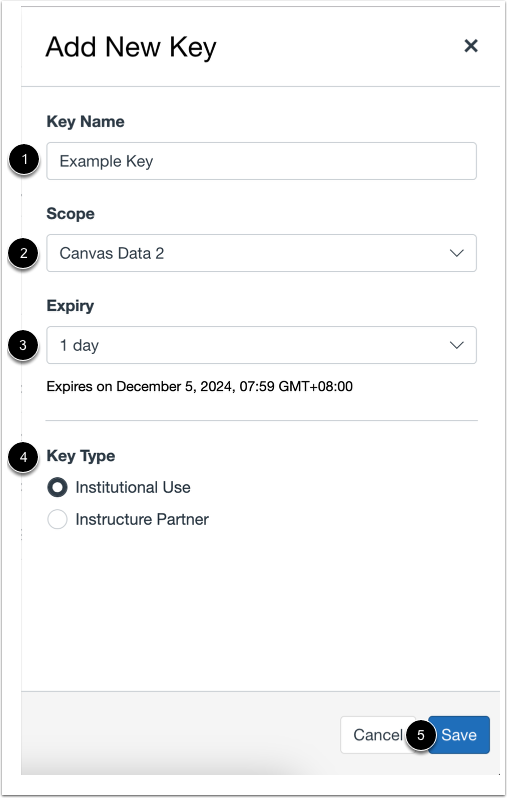
In the Key Name field, enter a name for the key [1].
In the Scope drop-down menu, select Canvas Data 2 [2].
In the Expiry drop-down menu, select the expiration time (3 year) [3].
In the Key Type section, click the Institutional Use radio button [4].
Click the Save button [5].
Copy API Key and Secret
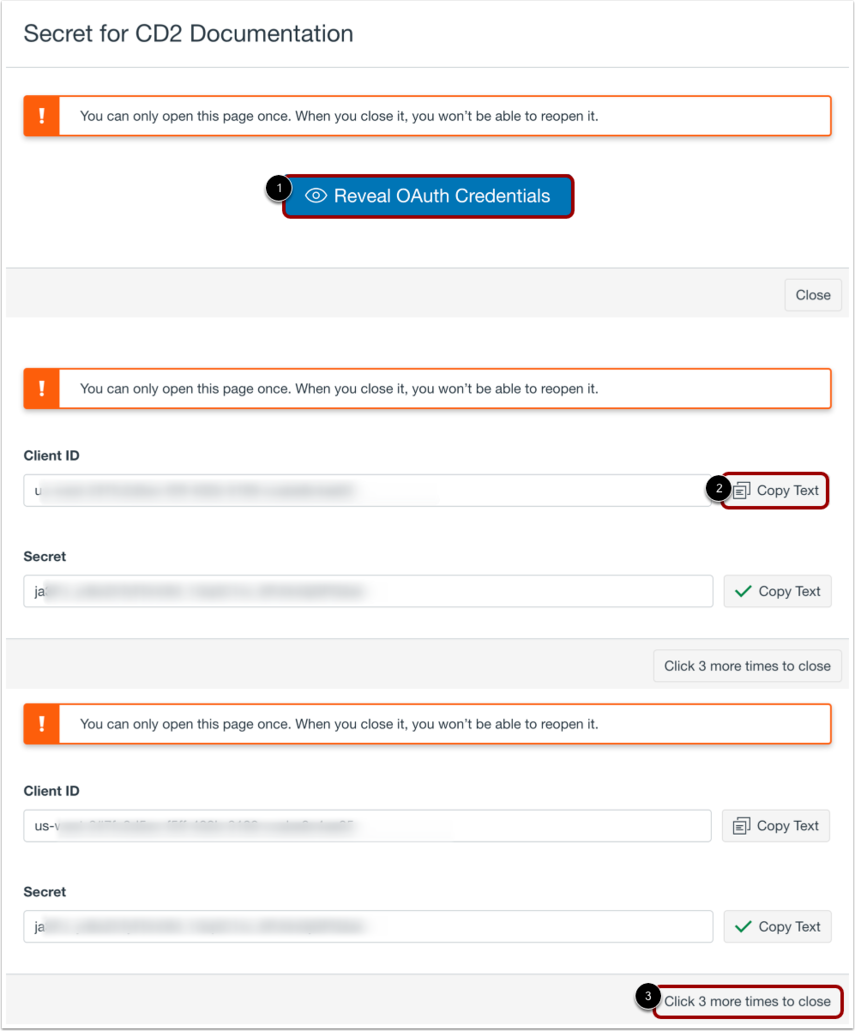
To reveal your Client ID and Secret, click the Reveal OAuth Credentials button [1].
To copy your Client ID and Secret, click the Copy Text button next to the Client ID and Secret fields [2].
To avoid accidental closing before copying the Client ID and Secret, you need to click the Click 3 more times to close button [3].
Notes:
The Client ID and Secret window can only be opened one time. When you close it, you cannot reopen it.
If you do not copy the generated Client ID and Secret and close the window, you will need to generate a new Client ID and Secret.
View Generated API Key

View the generated API key name. Once the API key is generated, you can manage the API key.
Sending the key to Drieam
In order to share the keys with us at Drieam so we can enable Canvas Data 2 in StudyCoach, we have added a field in the settings for the root account manager (in StudyCoach)
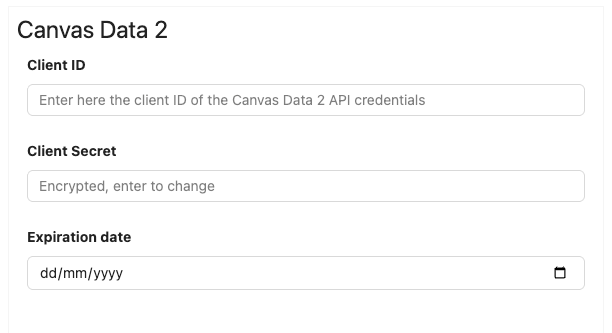
Insert the Client ID, Client Secret and the expiration date here and press the save button.
Note: In the rare case where you have to communicate the key to us yourselves, you will need a secure way to transfer keys, this can be done with tools like: SURFfilesender or secure notes from your password manager (1Password, LastPass, etc).
If you use these ways of sending the key, make sure to send the link to the file and the password to decrypt the file in two separate emails.
Was this article helpful?
That’s Great!
Thank you for your feedback
Sorry! We couldn't be helpful
Thank you for your feedback
Feedback sent
We appreciate your effort and will try to fix the article