⚠️ This page is no longer maintained. Please refer to our new Knowledge Base at knowledgebase.portflow.app.
To install Portflow on your Blackboard instance, follow the steps below.
I. Add an LTI tool provider
- Navigate to Admin > LTI Tool Providers (under Integrations)
- Click Register LTI 1.3/Advantage Tool

- Enter the following Client ID:
EU Hostingdbf25a94-5d49-495c-a1c5-e64923cdf3ec
AU Hosting
90a46a52-fd6b-4fe1-aa31-b5f7f5e18dea - Click Submit
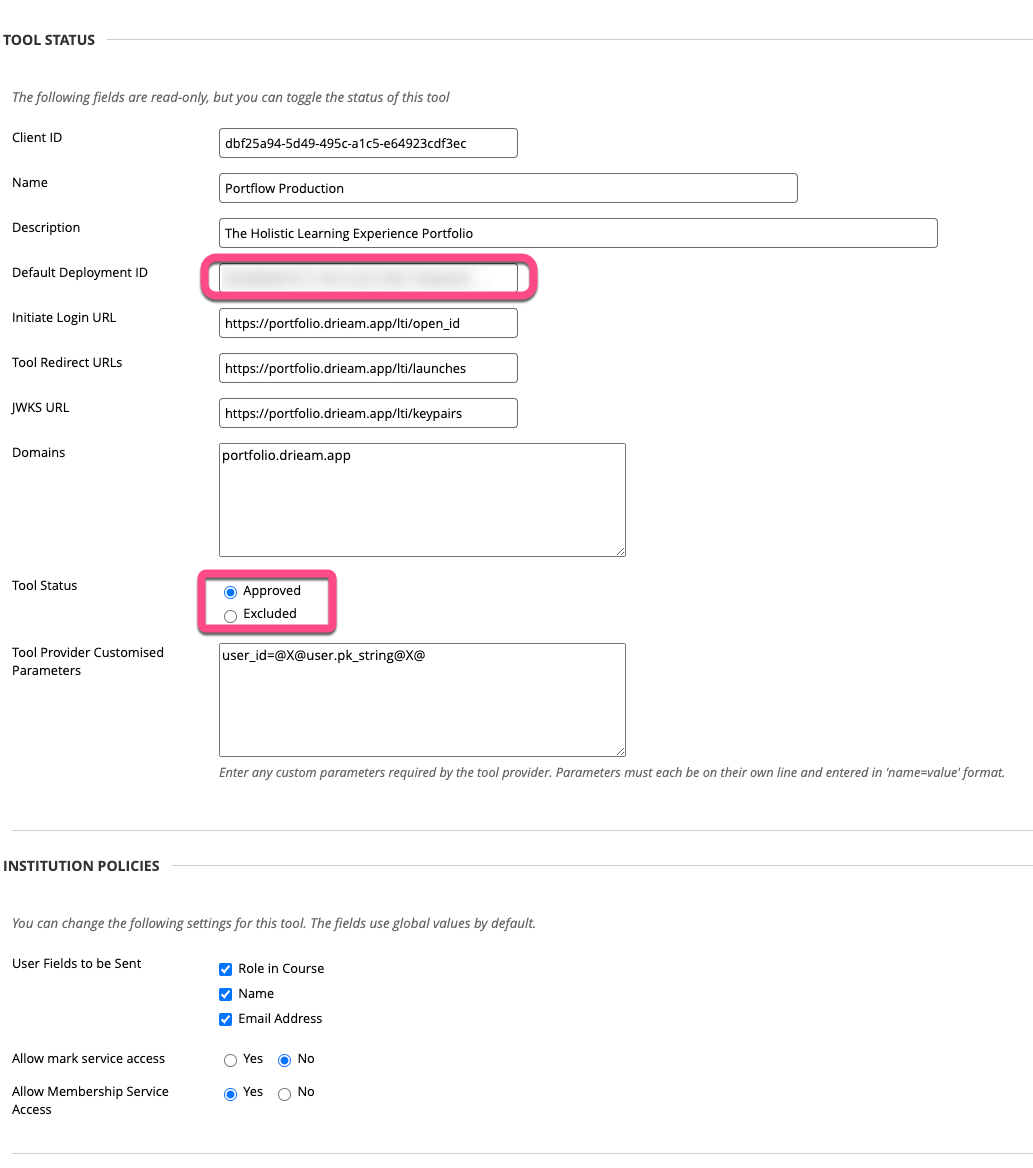
- Set the Status to Approved
- Copy the Default Deployment ID (send it over to Drieam)
- Ensure all User Fields to be Sent are checked
- You can set the Allow mark service access to No
- Ensure Allow Membership Service Access is set to Yes
- Click Submit
II. Add role and user
ℹ︎ | Step II and III (adding a role, user, and API integration) are required to allow users to search for and find other users that have not yet launched (used) Portflow. This can be skipped, resulting in users only being able to find and invite other users that have at least used Portflow once. |
- Navigate to Admin > System Roles (under Users)
- Click Create Role
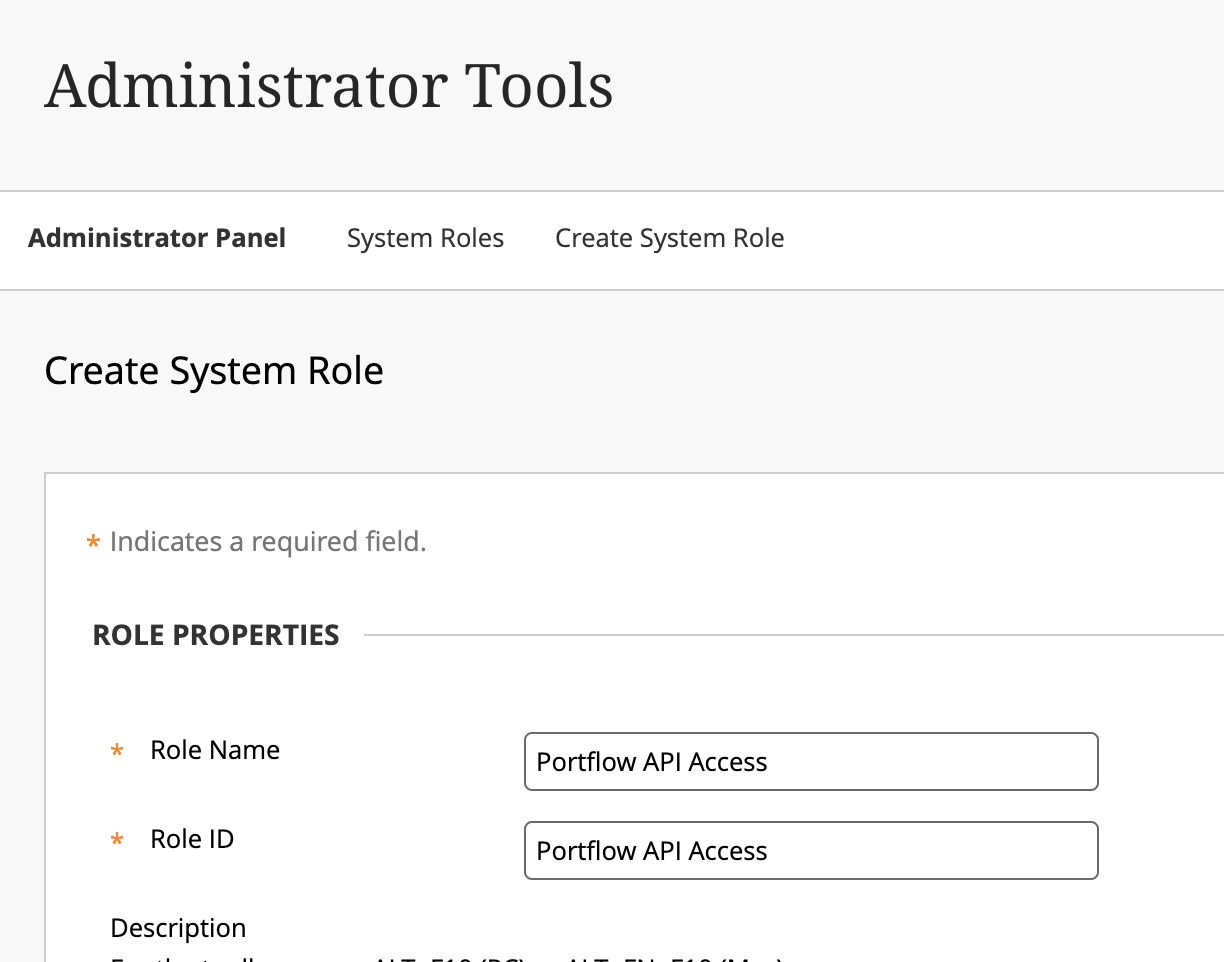
- Add a Role name and Role ID, e.g. 'Portflow API Access'
- Click Submit.
- Search for the Privilege: Administrator Panel (Users) > Users and enable that privilege.
All other privileges are not required (and can be removed).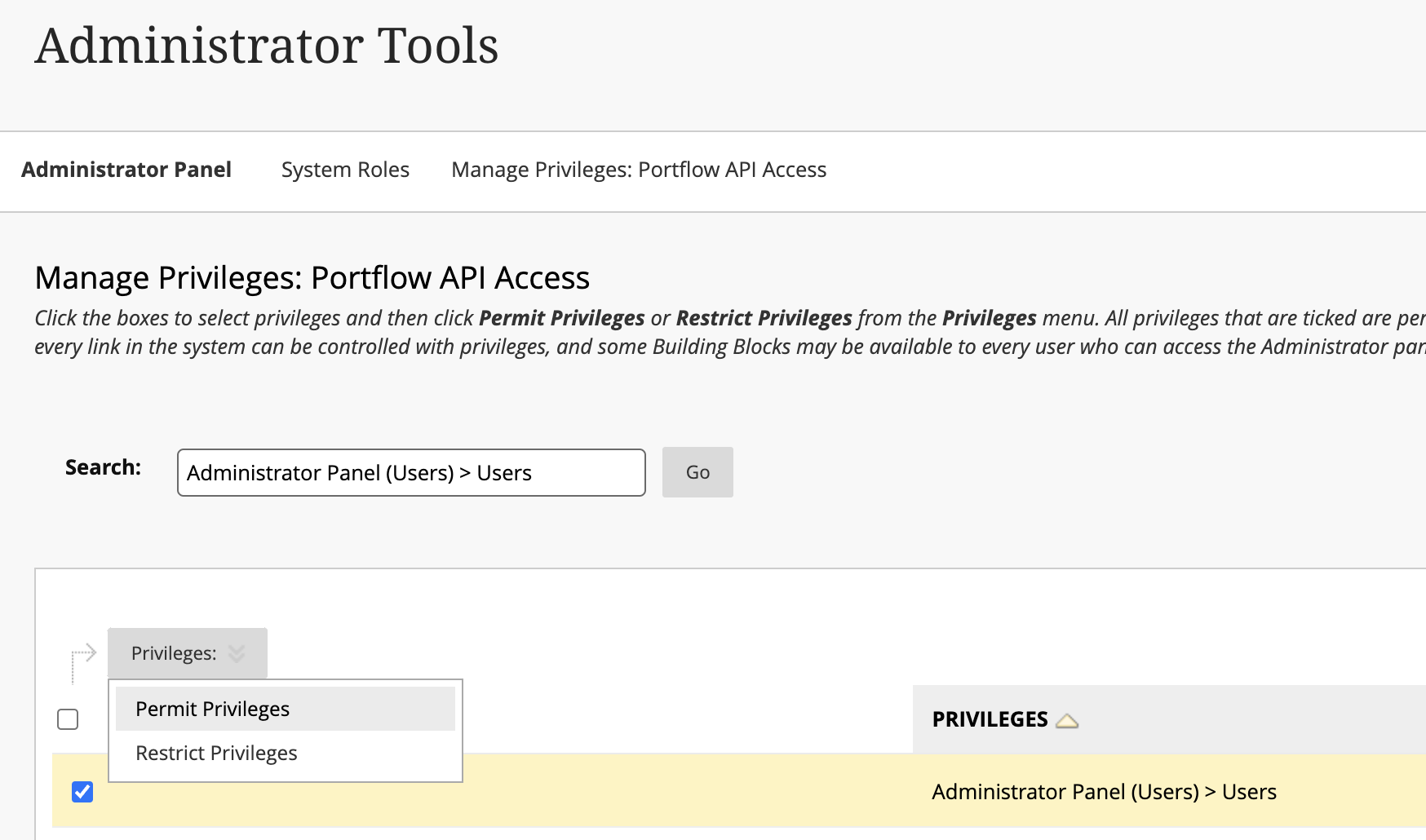
- Navigate to Admin > Users (under Users)
- Create a new user with the just created role as the Primary System Role
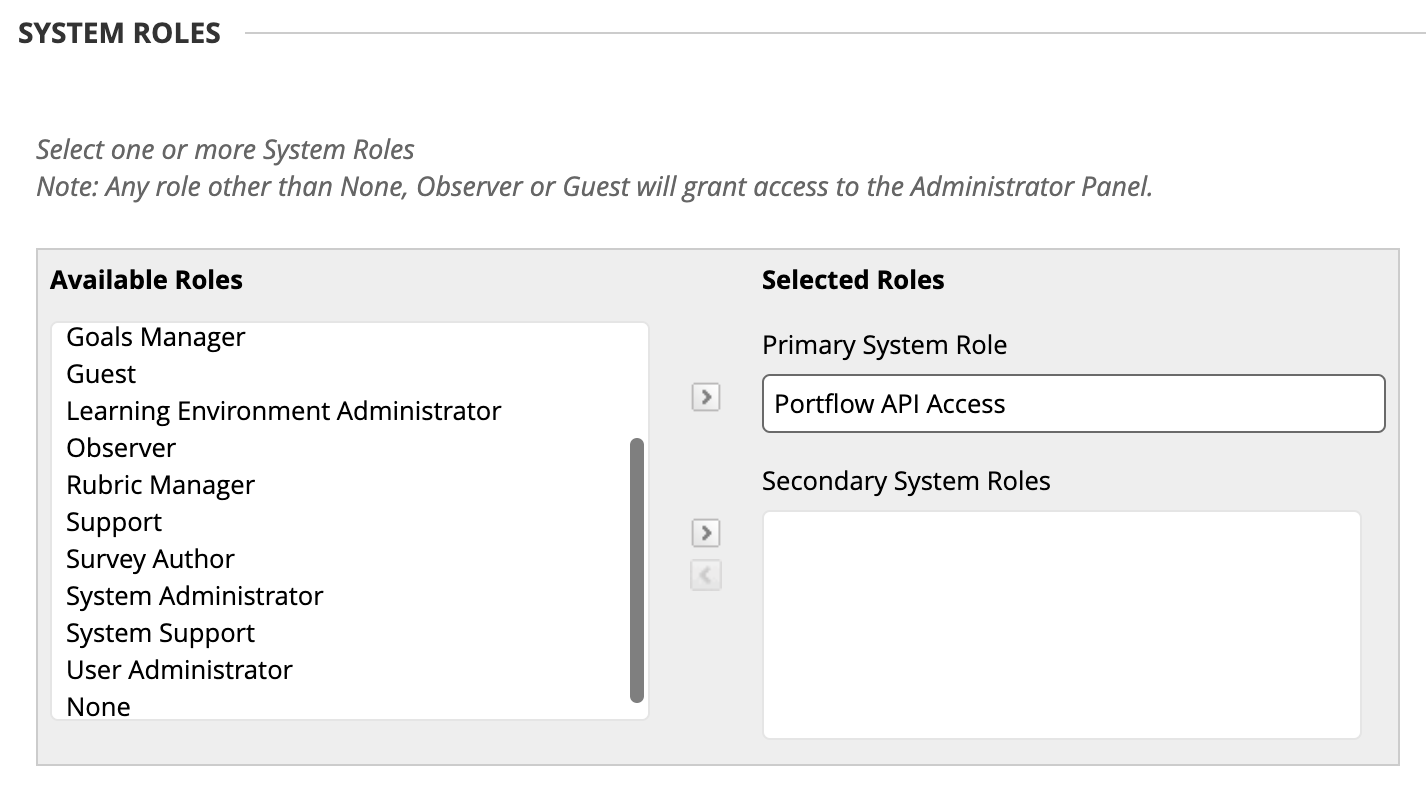
- Share the user sign in details with Drieam (you SHOULD NOT change the password or delete the user after Drieam has processed the account to authorise access. Changing the password or removing the user will revoke Drieams API access.)
- Click Submit
III. Add API Integration
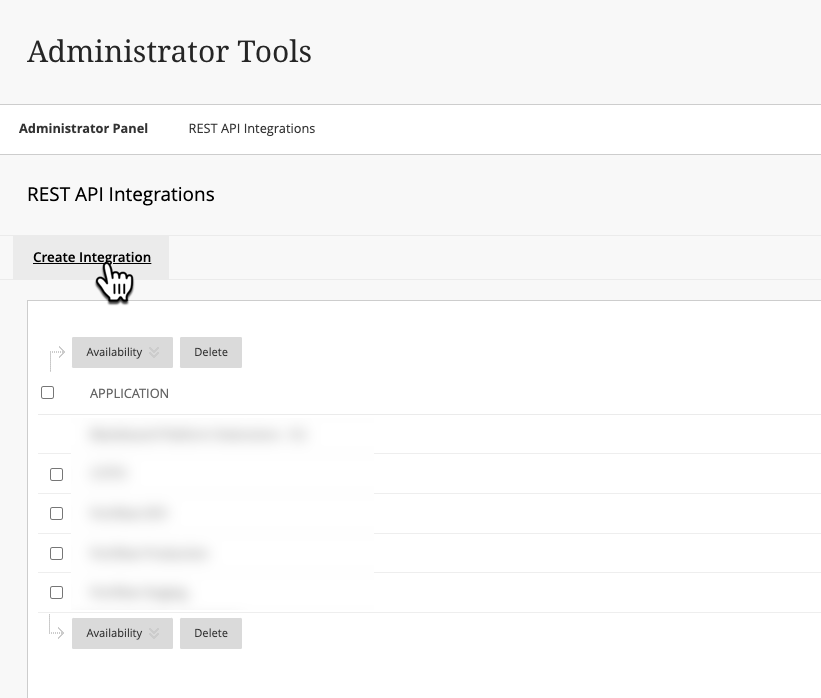
- Navigate to Admin > REST API Integrations (under Integrations)
- Click Create Integration
- Enter the Application ID, same as the Client ID from step I.3 above
dbf25a94-5d49-495c-a1c5-e64923cdf3ec - Select the created user from step II (with the assigned System role) for the Learn User
- Set End User Access to Yes
- Set Authorised To Act As User to No or Service Default (No)

IV. Default language
The default language for Portflow has to be set by Drieam. This is the language that will be shown to users who have their Blackboard account set to any language other than the list of supported languages. Let Drieam know what your primary (default) language and secondary language(s) should be. The default language cannot be changed.
ℹ︎ | Portflow currently supports the following languages:
|
Send to Drieam
Please forward the following information to Drieam, for them to complete the installation:
- Default Deployment ID (from step I.6)
- Domain and URL of the Blackboard instance where Portflow is installed
- Type of installation (e.g. acceptance/testing/production)
- [Optional, see note in step II] Sign-in details (username, password, clean Blackboard sign-in url) of the newly created user with the designated privileges.
Note: users will not be able to search for/find System administrators when sharing their portfolio. This is a limitation set by the Blackboard API.
Was this article helpful?
That’s Great!
Thank you for your feedback
Sorry! We couldn't be helpful
Thank you for your feedback
Feedback sent
We appreciate your effort and will try to fix the article