⚠️ This page is no longer maintained. Please refer to our new Knowledge Base at knowledgebase.portflow.app.
The Portflow installation in Moodle contains a couple of steps.
TABLE OF CONTENTS
=====
REQUIRED INSTALLATION METHOD
1. Add an external tool
- Navigate to the Moodle Plugins
Site administration → Plugins → Manage tools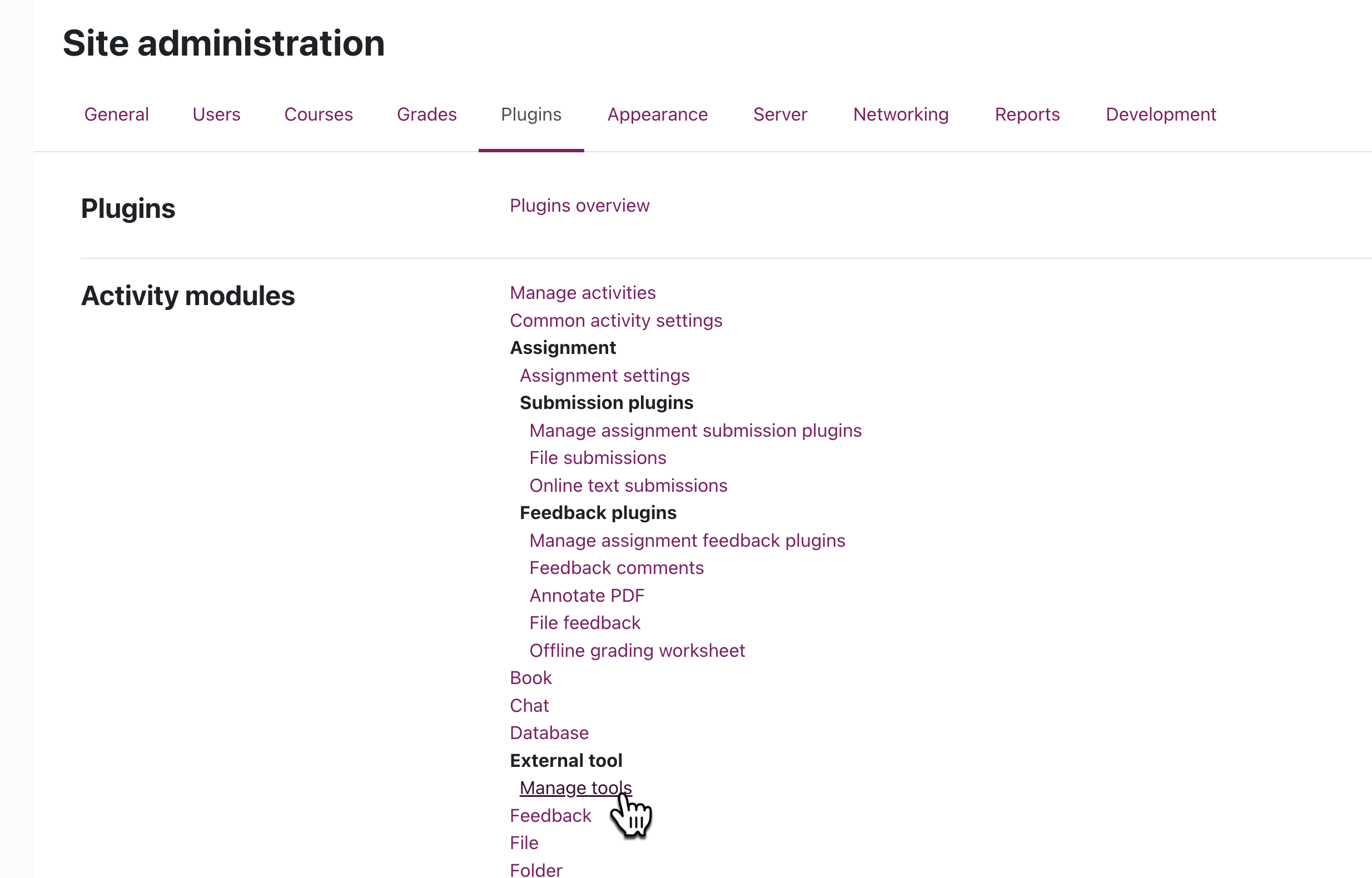
- Click Configure a tool manually.
- Fill out the following details
Tool settings
Tool Name Portflow Tool URL EU Hosting
https://app.portflow.app/lti/launches
AU Hosting
https://au.portflow.app/lti/launchesTool description The Student-Owned Learning & Assessment Portfolio LTI version LTI 1.3 Public key type Keyset URL Public keyset EU Hosting
https://app.portflow.app/lti/keypairs
AU Hosting
https://au.portflow.app/lti/keypairsInitiate login URL EU Hosting
https://app.portflow.app/lti/open_id
AU Hosting
https://au.portflow.app/lti/open_idRedirection URI(s) EU Hosting
https://app.portflow.app/lti/launches
AU Hosting
https://au.portflow.app/lti/launchesCustom parameters - Tool configuration usage Show in activity chooser and as a preconfigured tool Default launch container Embed, without blocks Content Selection URL - Icon URL EU Hosting
https://app.portflow.app/favicon.svg
AU Hosting
https://au.portflow.app/favicon.svgSecure icon URL -
ServicesIMS LTI Assignment and Grade Services Do not use this service IMS LTI Names and Role Provisioning Use this service to retrieve members’ information as per privacy settings Tool Settings Use this service Privacy
Share launcher's name with tool Always Share launcher's email with tool Always Accept grades from the tool As specified in Deep Linking definition or Delegate to teacher Force SSL No Miscellaneous
Default organisation ID Site ID Organisation ID - Organisation URL - When you’re done, go back to the page Manage tools. You’ll see a new tool in the list.
Click on the icon View configuration details.
Send over all details to Drieam.
2. Add Portflow tool
- Navigate to the homepage
- Enable Edit Mode
- Click Add activity or resource
- Select Portflow
- Activity Name: Portflow
- Under Common Module Settings set Availability to Make available but don't show in course page.
- Click Save and return to course
- Hover over or open the tool and note the activity ID from the URL
(last part of the URL, e.g./mod/lti/view.php?id=##where ## is the activity ID) - Send Drieam the activity ID.
3. Allow authenticated users to launch Portflow
In order to allow authenticated users to launch Portflow placed on the site home, we need to change a permission.
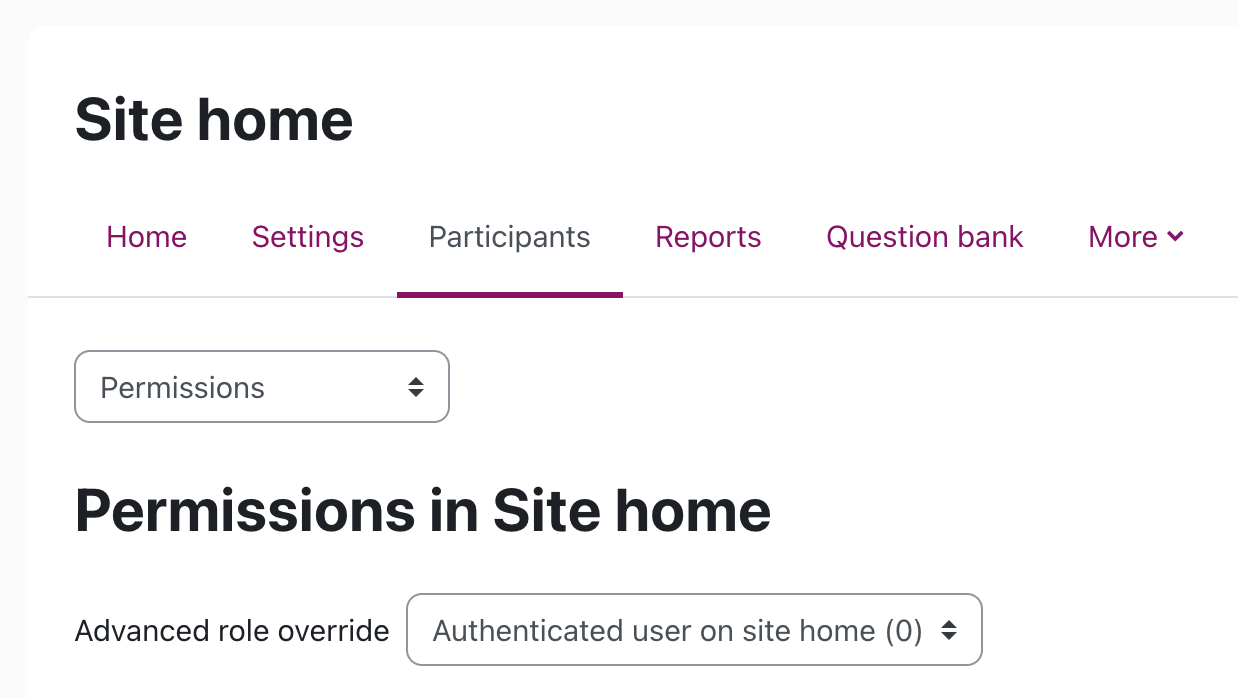
- Click Participants on the homepage
- In the dropdown, select Permissions
- For Advanced role override, select Authenticated user on site home
- Find Launch external tool activities (scroll down or use the filter)
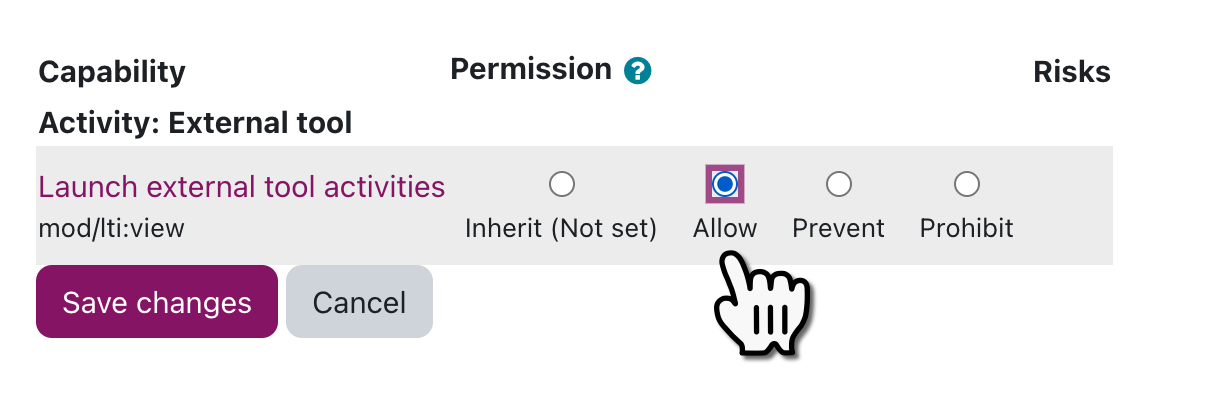
- Select Allow
- Click Save changes
4. Make Portflow use the full available real estate within Moodle (CSS modification)
- Go to Site administration → Appearance → Boost → Advanced settings (or if another theme is applied, choose that instead of "Boost").
- In Raw SCSS, add the code below (use the code piece that is relevant to your Moodle version):
/* CSS code for Portflow in Moodle 4.1 */
.cmid-## {
 #topofscroll {
    padding: 0;
 }
 #page.drawers div[role=main] {
    padding: 0;
    height: 100%;

    iframe {
       border: none;
       border-radius: 0;
       position: absolute;
       height: 100% !important;
    }
 }
 #page.drawers .main-inner {
    margin: 0;
    padding: 0;
 }
 #page {
    padding-left: 0;
    padding-right: 0;
 }
 #page-header {
    display: none;
 }
 #page-footer {
    display: none;
 }
 #page-content {
    padding: 0 !important;
    height: 100%;
  }
 .secondary-navigation {
    display: none;
 }
 #region-main-box {
    height: 100%;
 }
 #region-main {
    height: 100%;
 }
 #maincontent {
    display: none;
 }
}


/* =================================== */


/* CSS code for Portflow in Moodle 4.5 */
.cmid-## {
 #topofscroll {
    padding: 0;
 }
 #page.drawers div[role=main] {
    padding: 0;
    height: 100%;

    iframe {
       border: none;
       border-radius: 0;
       position: absolute;
    }
 }
 #page.drawers .main-inner {
    margin: 0;
    padding: 0;
 }
 #page {
    padding-left: 0;
    padding-right: 0;
 }
 #page-header {
    display: none;
 }
 #page-footer {
    display: none;
 }
 #page-content {
    padding: 0 !important;
    height: 100%;
  }
 .secondary-navigation {
    display: none;
 }
 #region-main-box {
    height: 100%;
 }
 #region-main {
    height: 100%;
 }
 #maincontent {
    display: none;
 }
 .activity-header {
    margin: 0 !important;
 }
}
Replace "##" on the first line with the noted activity ID (step 2.8).
5. Add Portflow to the navigation
In order to open Portflow, add a link in the main navigation.
- Go to Site administration → Appearance → Theme settings
- In the field Custom menu items, add a new line:
Portflow|/mod/lti/view.php?id=##
- Replace "##" with the noted activity ID (step 2.8).
6. Default language
The default language for Portflow has to be set by Drieam. This is the language that will be shown to users who have their Moodle account set to any language other than the list of supported languages. Let Drieam know what your primary (default) language and secondary language(s) should be. The default language cannot be changed.
ℹ︎ | Portflow currently supports the following languages:
|
Finish up: send information to Drieam
Please send over the following information to support@drieam.com, allowing them to complete the installation:
- From the Configuration details (step 1)
- Platform ID
- Client ID
- Deployment ID
- Public keyset URL
- Access token URL
- Authentication request URL
- Open Portflow in Moodle
- The full URL of Portflow in your Moodle environment, which should look something like this:
https://[instance-url]/mod/lti/view.php?id=[#]
Make sure to include the instance url and the activity ID
- The full URL of Portflow in your Moodle environment, which should look something like this:
- Primary default language (and optional secondary languages)
DEPRECATED INSTALLATION METHOD
NOTE: We do not support this method for new installations.
Using this method you will not be able to use the coaching dashboard.
1. Add an external tool
- Navigate to the Moodle Plugins
Site administration → Plugins → Manage tools - Click Configure a tool manually.
- Fill out the following details
Tool settings
Tool Name Portflow Tool URL https://app.portflow.app/lti/launches Tool description The student owned learning experience portfolio LTI version LTI 1.3 Public key type Keyset URL Public keyset https://app.portflow.app/lti/keypairs Initiate login URL https://app.portflow.app/lti/open_id Redirection URI(s) https://app.portflow.app/lti/launches Custom parameters - Tool configuration usage Show as preconfigured tool when adding an external tool Default launch container Embed, without blocks Content Selection URL - Icon URL https://app.portflow.app/favicon.svg Secure icon URL -
ServicesIMS LTI Assignment and Grade Services Do not use this service IMS LTI Names and Role Provisioning Use this service to retrieve members’ information as per privacy settings Tool Settings Use this service Privacy
Share launcher's name with tool Always Share launcher's email with tool Always Accept grades from the tool As specified in Deep Linking definition or Delegate to teacher Force SSL No Miscellaneous
Default organisation ID Site ID Organisation ID - Organisation URL - When you’re done, go back to the page Manage tools. You’ll see a new tool in the list.
Click on the icon View configuration details.
Send over all details to Drieam.
2. Create a course shell for Portflow
- Create a new course
Site administration → Courses → Add a new course - Fill out the details below
General
Course short name Portflow Course category Whatever Course visibility Show Course start date Today Course end date Disable, no end date! Course ID number - Description
Course summary - Course image https://app.portflow.app/favicon.svg Course format
Format Single activity format Type of activity External tool Appearance
Force language Do not force Show gradebook to students No Show activity reports No Show activity dates No Click Save and display.
3. Add Portflow to the course shell
You will now be redirected to the page Adding a new External tool.
- Fill out the following details
General
Activity name Portflow Activity description - Secure tool URL - Launch container Embed, without blocks Consumer key - Shared secret - Custom parameters - Icon URL https://app.portflow.app/favicon.svg Secure icon URL - Preconfigured tool The external tool you created before (step 1). Tool URL - Click Save and display.
Copy the course URL and note it down as we'll need the course page id (last part of the url) for the navigation button.
Open the inspector (right click somewhere on the page > Inspect) and locate the css body class in the format course-###. Note that course id down as we'll need it for the CSS.
4. Make Portflow use the full available real estate within Moodle (CSS modification)
- Go to Site administration → Appearance → Boost → Advanced settings (or if another theme is applied, choose that instead of "Boost").
- In Raw SCSS, add the code below:
.course-### {
 #topofscroll {
    padding: 0;
 }
 #page.drawers div[role=main] {
    padding: 0;
    height: 100%;

    iframe {
       border: none;
       border-radius: 0;
       position: absolute;
       height: 100% !important;
    }
 }
 #page.drawers .main-inner {
    margin: 0;
    padding: 0;
 }
 #page {
    padding-left: 0;
    padding-right: 0;
 }
 #page-header {
    display: none;
 }
 #page-footer {
    display: none;
 }
 #page-content {
    padding: 0 !important;
    height: 100%;
  }
 .secondary-navigation {
    display: none;
 }
 #region-main-box {
    height: 100%;
 }
 #region-main {
    height: 100%;
 }
 #maincontent {
    display: none;
 }
}
Replace "course-###" on the first line with the noted course id (step 3.4).
5. Add Portflow to the navigation
In order to open Portflow, users currently have to find the course. It can be made easier by adding a link in the main navigation.
- Go to Site administration → Appearance → Theme settings
- In the field Custom menu items, add a new line:
Portflow|/mod/lti/view.php?id=##
- Replace "##" with the noted page id (step 3.3).
Finish up: send information to Drieam
Please send over the following information to Drieam, allowing them to complete the installation:
- From the Configuration details (step 1)
- Platform ID
- Client ID
- Deployment ID
- Public keyset URL
- Access token URL
- Authentication request URL
- Open Portflow in Moodle
- The full URL of Moodle in your environment, which should look something like this:
https://[instance-url]/mod/lti/view.php?id=[#]
- The full URL of Moodle in your environment, which should look something like this:
Was this article helpful?
That’s Great!
Thank you for your feedback
Sorry! We couldn't be helpful
Thank you for your feedback
Feedback sent
We appreciate your effort and will try to fix the article