
TABLE OF CONTENTS
- Eduframe calendar as a participant
- Eduframe calendar as a teacher
- Eduframe calendar as an admin
- How can a teacher or participant add the Eduframe meetings to their own personal calendar?
- More information
The Eduframe Calendar is a central feature that connects your administrative planning with the student's learning schedule. It serves different purposes depending on whether you are an administrator, a student or teacher.
Eduframe calendar as a participant
Once a student enrolls, their calendar becomes their primary guide for the education.
Student Portal Access: Participants can log into their private dashboard to see a personalized calendar containing only the meetings for courses they are enrolled in.
iCal Sync (External Calendars): Participants can sync their Eduframe schedule with their personal calendar apps (like Google Calendar, Outlook, or Apple Calendar) via a unique iCal feed. This ensures they get notifications on their phones for upcoming classes.
LMS Integration: If you use Canvas LMS, any meeting created in Eduframe is automatically synced to the Canvas Calendar, keeping the learning content and the schedule in one place
Read more about the student portal
Eduframe calendar as a teacher
Once a teacher is connected to a course/meeting, their calendar becomes their primary guide for the education.
Teacher Portal Access: Teachers can log into their private dashboard to see a personalized calendar containing only the meetings for courses they are enrolled in.
iCal Sync (External Calendars): Students can sync their Eduframe schedule with their personal calendar apps (like Google Calendar, Outlook, or Apple Calendar) via a unique iCal feed. This ensures they get notifications on their phones for upcoming classes.
LMS Integration: If you use Canvas LMS, any meeting created in Eduframe is automatically synced to the Canvas Calendar, keeping the learning content and the schedule in one place
Read more about the teacher portal
Eduframe calendar as an admin
For the back-office team, the calendar is a visual tool for resource management.
Conflict Detection: When scheduling a meeting, Eduframe automatically checks if a teacher or a classroom is already booked for another course, preventing double-bookings.
Meeting Templates: You can create "meeting templates" (e.g., a standard 10-week lecture series) and apply them to new course editions to instantly populate the calendar.
Resource Allocation: You can view the calendar by Location (to see room availability) or by Teacher (to see staff workloads).
Read more about the admin possibilities in scheduling, planning and calendar here.
How can a teacher or participant add the Eduframe meetings to their own personal calendar?
A teacher/student can import their Eduframe calendar to, for example a Google Calendar. Once you have subscribed to the calendar feed, you can remove or unsubscribe from the calendar feed at any time.
1. Click on Calendar in the main navigation. Then click on the Calendar feed button.

2. Copy the URL by clicking on the button with the copy icon
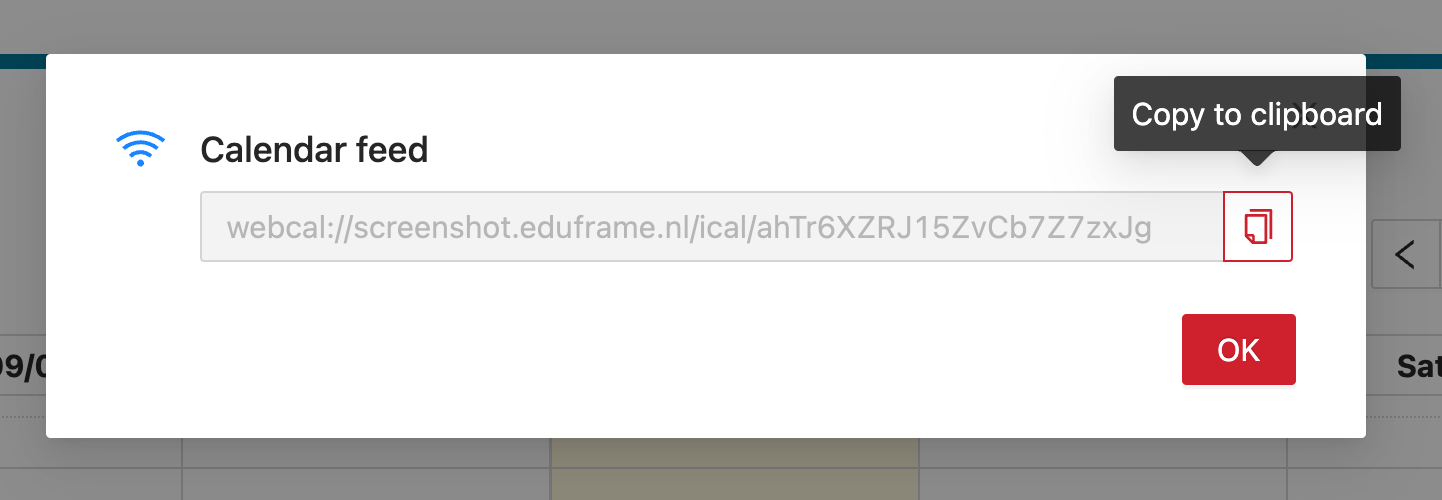
3. Paste this URL into any calendar app that takes iCal feeds (Google calendar, iCal, Outlook, etc.)
Tip: It is also possible to subscribe to the Canvas Calendar feed (which also includes the Eduframe meetings).
For more information on how to do this specifically for Google, Microsoft or Apple Calendar, go to these links:

- Import calendar to Google Calendar
- Import events to Microsoft Calendar (outlook)
- Import calendar to Apple Calendar
More information

Click here for other Articles around the Settings page in Eduframe

Click here if you have any questions for support.
Was this article helpful?
That’s Great!
Thank you for your feedback
Sorry! We couldn't be helpful
Thank you for your feedback
Feedback sent
We appreciate your effort and will try to fix the article