

TABLE OF CONTENTS
- Scheduled email templates
- Where to find email actions
- How to create a scheduled email template
- More information
Scheduled email templates
Scheduled email templates are emails that are triggered by the start or end date of a course. Therefore these emails need to be created within a Course Template. Each time a new Course Edition of this Course Template is planned, all these emails will be automatically scheduled.
Note: if you add a new email action to a course template, this email action will not be applied to existing course editions. New email actions will only be planned for newly created course editions. Where to find email actions
- Go to "Courses" > "Templates"
- Click on an already existing Course Template
- Click on the tab "Scheduled email templates"

How to create a scheduled email template
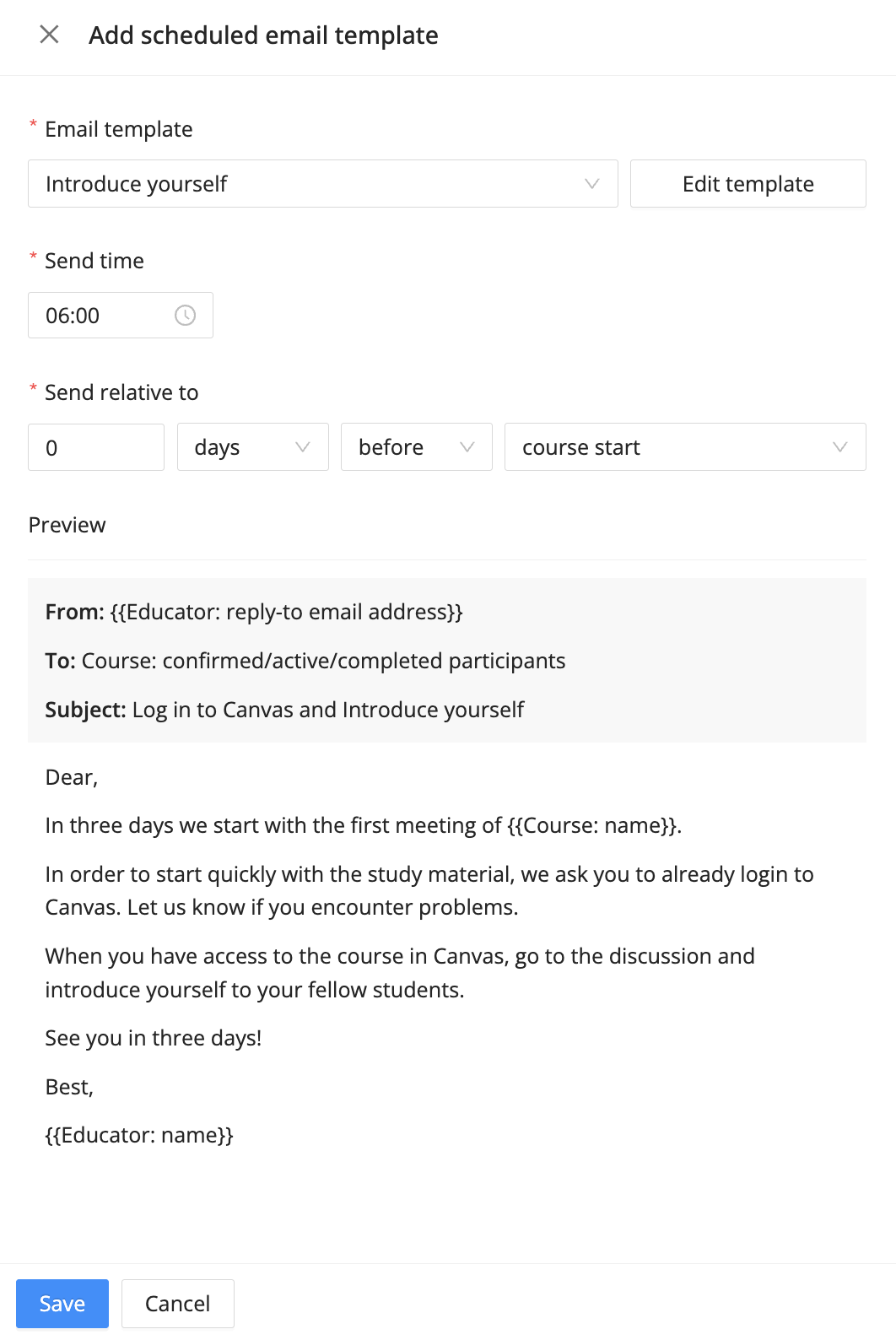
- When being in the Scheduled email template tab you click on the "+ scheduled email template" button
Email Template: If you already created the Email Template in the settings, you can select the Email template here. Otherwise you have to go to settings to create your email template. See this article for information on how to create email templates for courses.
Edit template: Here you can quickly go to the email template and edit it.
Send time: Specify at what time the email should be sent
Send relative to: Specify when the email should be sent based on the start or end date of the Course.
- Save: Save your Scheduled email template
Best Practices & Common Use Cases
To help you get started, here are the most effective ways to use these triggers:
| Timing | Example Topic | Goal |
| 3 days before start | Introduce yourself | Encourage participants to log in to Canvas and start engaging. |
| 1 day before start | Reminder: See you tomorrow! | Reduce no-shows and provide final logistical details (location/link). |
| 2 days after start | Evaluation form | Capture feedback while the course experience is still fresh. |
| 1 week after end | Download your certificate | Reward successful participants once all grades are finalized. |

More information

Click here for other about Eduframe

Click here if you have any questions for support.
Was this article helpful?
That’s Great!
Thank you for your feedback
Sorry! We couldn't be helpful
Thank you for your feedback
Feedback sent
We appreciate your effort and will try to fix the article